Showing posts with label CAT. Show all posts

Sunday, June 21, 2026

Breaking news: circular wheels reinvented

Preserving file formats is not a novelty feature in 2026. It’s something you only notice when it breaks.

Yet Lara Translate (Yet Another AI Translator) by Translated, an Italian LSP, proudly announces that it can translate DOCX and PPTX files while preserving formatting. This is presented with a tinny trumpet fanfare as a key feature, even though it has been standard in most competent CAT tools for decades.

Back in the 1990s, DejaVu was the first Windows CAT tool many translators like me actually used in production. Somewhere, I must still have a DejaVu installation disk whose entire serial number is simply “11”, and it was on DV that I first worked in a segmented environment on Windows and got my formatted files back at the end. By the time Trados for Windows and other tools followed, the expectation was already set: you feed in a formatted source file, translate in a CAT tool, and get back a clean, formatted target file.

Fast-forward to today, and we see marketing copy that treats “we preserve formatting” as if it were a bold, AI‑powered breakthrough. 

It isn’t. For anyone who has used mainstream CAT tools over the last 15–30 years, it sounds more like reinventing the wheel by loudly claiming your wheels are circular.

If there is something genuinely new under the hood, that would be the part worth explaining. Do they handle edge‑case layouts better? Integrate AI sensibly with TM and terminology? Solve real workflow problems? The email campaign doesn’t say.

Better to entrust your translations to an experienced, tech‑savvy human linguist, someone who knows which tools to use (including AI, when warranted) and when to rely on their own expertise.

Tuesday, July 27, 2021

An AutoHotkey solution to a memoQ problem

The memoQ problem…

Some installations of memoQ suffer an annoying problem: cut and paste doesn’t work. The rest of the program works, as does copy and paste, but not the "paste" part of cut and paste: memoQ deletes your text at Ctrl+X all right, but it does not save it to the clipboard, so you have nothing to paste when you hit Ctrl+V.

If you try to perform the operation via the context menu, no luck, either: after Ctrl+X, paste (Ctrl+V) is greyed out.

Cut and Paste not working in memoQ

The problem appears unpredictably: you could have (as I do) two similar computers, with a similar panoply of software installed. On one cut and paste works as expected in memoQ, while in the other it doesn't.

memoQ’s support staff are aware of this problem, but (since they have never been able to reproduce it) their developers are unable to fix it. memoQ's support offer several suggestions that sometime work, from disabling other programs that might interfere with the clipboard, to deleting certain temporary files, and finally to that old favorite of all support organizations: reinstalling the program… but even reinstallation, for certain users, fails to correct the problem.

Fortunately, there is a simple workaround: instead of hitting Ctrl+X to cut and Ctrl+V to paste, you can add a step—copy (Ctrl+C), delete (Del), and finally paste (Ctrl+V)—but if you are accustomed to just using Ctrl+X/Ctrl+V in all other programs, you are likely to forget that you have to use different steps in memoQ.

...and the AutoHotkey solution

So we need a more permanent solution, and one is at hand (this also is thanks to a suggestion from memoQ support): using an AutoHotkey1 script to replace the “cut” part of cut and paste.

Here is the script (complete with comments to explain what each step does):

#NoEnv  		; Recommended for performance and compatibility with future 
                        ; AutoHotkey releases.
SendMode Input  	; Recommended for new scripts due to its superior speed 
                        ; and reliability.
SetWorkingDir %A_ScriptDir%  ; Ensures a consistent starting directory.
^x:: 			; Assigns to the Ctrl+X shortcut the following actions:
#IfWinActive memoQ 	; ensures script works with memoQ only, not with other programs
Send ^c 		; Copy (as if "Ctrl+C" had been pressed)
Send {del} 		; Delete (as if the "Delete" key had been pressed)
#IfWinActive 		; end of the "works in memoQ only" part of the script
Return 			; end of the script

You can use this script "as is" if you already have AutoHotkey installed: just copy the above code to an empty text file and save it with an .ahk extension; then, whenever you need to work in memoQ, double click on the script file to launch it.

If you use other AutoHotkey scripts, you also can add the above code snippet to one of your other scripts (so long as none of them tries uses Ctrl+X as a hotkey). And you can even compile the script to an independent .exe file, to use on computers where AutoHotkey is not installed.


1 AutoHotkey is a free, open-source scripting language for Windows that allows users to easily create small to complex scripts.

Friday, April 16, 2021

Trados Studio 2021 - The Manual

Mats Linder has just published a new edition of his excellent Trados Studio manual, now covering version 2021 of the tool.

Cover of Trados Studio 2021 - The Manual


As usual, Mats has done a thorough job of describing the details of the new version of the tool, with one important exception, that Mats explains at the beginning of the new manual:
The 2021 version [of the tool] is mainly about the introduction of SDL Trados Live [...] The online editor will require many pages of documentation before it is covered to the same depth here as Studio. Upcoming editions of the 2021 manual will provide such documentation
So, the new manual covers other important changes introduced by SDL (now RWS) in the new version of the tool, but doesn’t describe (yet) the details of Trados Live, the online version of the tool.

Still, while we wait for Mats to also cover the new online tool, the 2021 manual is essential reading for all translators who want to make the most of the new features in the tool, including, for example, improvements to the advanced display filter.

As usual Mats provides also a version of the manual which highlights the changes made to the previous edition. I’ve always found the highlighted version to be particularly useful: the highlights help readers skip to the places of the book which describe changes or new features.
You can buy the Manual (or upgrade to the new edition) from Mat’s web page: SDL Trados Studio - The Manual

Friday, October 23, 2020

Guest Post: Bohemicus - a multifaced translator’s tool

by Jan Kapoun

Ever wanted to use machine translation or voice dictation in just about any CAT tool out there?

Well ... now, you can!

What is Bohemicus?

Bohemicus is a powerful translator’s tool. It integrates with your CAT tool (or any other application) to enhance its capabilities. It works like an interface. With Bohemicus, you can use machine translation, voice dictation (speech-to-text), your own translation memories, conveniently search in online/offline dictionaries, take notes, and much more… in CAT tools that do not actually provide such functionality by themselves. This way, your productivity and translation speed are greatly boosted.

Bohemicus enables you to work in professional software such as Across or Transit and to use machine translation or voice dictation, even if your software itself does not provide such functionality.

For a better understanding of what Bohemicus actually is all about, please watch the introductory video below:


Bohemicus: A program that’s actually on your side

Bohemicus has been created by a person who truly understands your needs: Jan Kapoun, a professional translator and IT developer with 13 years’ experience in the translation industry.

Machine translation in Bohemicus

Machine translation is provided by Google (paid service) or by MyMemory (free, but limited to 10K words/day).

To machine-translate a segment, simply press Ctrl+Space in your CAT tool. Bohemicus captures this command, translates your text behind the scenes and re-inserts the translation in the target language into your CAT tool.

Bohemicus works in several CAT tools: SDL Studio, Across, WordFast, memoQ, and DejaVu. In other tools, especially online tools like XTM or Coach, you just need to copy the source text into your target segment, select all the relevant text in this target segment and press Ctrl+Alt+Space. This will translate the selected portion of text.

Voice dictation

Voice dictation is based on the excellent Google speech-to-text engine, which functions even with minor languages, such as Czech, Slovak and Hungarian. To use this feature, it is necessary to download Bohemicus to your Android device (phone or tablet) and connect it through Bluetooth, with Bohemicus running in Windows 7/8/10. The Android and Windows instances of Bohemicus connect to each other automatically. Once you have established this connection, simply press the tilde key (~) on your PC keyboard (or tap the big blue B on your Android screen) to initiate the listening function. When you are done speaking, press the tilde key again to stop listening. Your speech will be almost instantly converted to text and inserted into your target CAT tool.

Offline/online dictionaries

To look up a specific word or term in your connected offline or online dictionary, simply select it in your CAT tool and press Ctrl+Alt+K and your offline/online dictionary will automatically appear on the screen, having looked up your word/term.

Bohemicus' Concordance Tab
Bohemicus’ Concordance Tab

Your own translation memories

When working in Across or in online tools like XTM or Coach you cannot use your own translation memories. This can really be a hassle, especially if you know that you have previously translated a similar text. With Bohemicus, you can connect your own translation memory and look up selected terms or even whole segments in it, by simply pressing Ctrl+Alt+K.

And more

Bohemicus also offers other useful editing functions, like a really neat note-taking feature, a clipboard manager for quickly inserting predefined strings... and much more.

About the author

Mgr. Jan Kapoun is a Czech linguist and programmer with a degree in Applied Information Technology (University of South Bohemia) and more than 13 years’ experience in the translation industry. He translates technical texts from English, German and French into Czech, and is continuously developing the Bohemicus software. You can try out his software downloading it from his web page: Bohemicus Software

Tuesday, May 21, 2019

New edition of Mats Linder invaluable SDL Trados Studio Manual updated for SDL 2019 SR1

Mats Linder's SDL Trados Studio - The Manual has now been updated with a new edition - the second for SDL Trados Studio 2019, to cover changes introduced with service release 1 (SR1) of the program.

The manual is now grown to 598 pages, and includes 30 pages on machine translation -- useful for many translators, considering the ever-increasing presence of MT in many projects.

The price is USD 52 or 49 Euro for new users (or half of that for those who bought previous versions of the manual).

I highly recommend it, since it complements (and mostly supersedes) SDL's own badly written documentation: Mats writes in a way that any user of SDL Trados studio will find useful.

Monday, October 01, 2018

SDL Trados Studio Manual 2019 - Just Published

Mats Linder has been publishing (and regularly updating) his "SDL Trados Studio Manual" for many years now, thus providing an indispensable service to all users of SDL Trados Studio, who otherwise would be left at the mercy of SDL's own obscure documentation.

He has just released the newest version of the manual SDL Trados Studio Manual 2019, updated to cover the most recent version of the program from SDL.

SDL Trados Studio 2019 Manual cover
The new version of the manual describes what's new in Studio 2019, as well as the features offered by new plugins released in SDL's app store since the previous version of the manual. 573 pages.

Tuesday, February 20, 2018

Infographic: Software Tools for Translation

I'm currently developing a course on CAT tools for the University College of Denver University.
I find mind mapping useful to generate and organize my ideas, so I created a mind map of the kind of software tools used by translators - CAT tools, of course, but also other types of tools, from those that help us manage our projects, to those we use for more specific tasks.

I asked Jost Zetzsche to take a look at my mind map, to see if he had any suggestions about types of programs I might have forgotten or things that should be changed.


Jost gave me some suggestions, and asked for a copy of the infographic for his Tool Box Journal.

Here is a copy of the infographic:
Software Tools for Translation

You can click here for a larger copy of the file, and here for a downloadable pdf.

I'd appreciate any suggestion or idea for future improvements.

Monday, October 23, 2017

Bad programming decisions in CAT tools

Everyone knows what software bugs are: flaws in a program that make the software fail or behave in unwanted and unexpected ways. Bugs are unavoidable in something as complex as software. The most we can reasonably ask of programmers is that they try to lessen the frequency and severity of bugs by using sound programming practices, and that they correct bugs quickly, once found.

Bugs are unintentional, whereas virus, Trojans and other malware are created with malicious purpose.

But, between unintentional bugs and willful malware, there is an entire class of problems caused by intentional programming decisions: when software features work as designed, but the design itself is ill-thought-out.

I'll give two examples from SDL Trados Studio and memoQ.

In Studio, an example of flawed design is the deliberate disabling of "smart quotes" when change tracking is active. According to SDL, "This currently is by design so that no uncontrolled/automatic changes should happen when typing in review mode." However, they didn't think through the real-world consequences of their decision: now, a translator may use smart quotes during translation, but since they are disabled during review, any apostrophe or quote entered during review will be straight. After review, the text of the translation will contain a mess of straight and curly quotes and apostrophes.

SDL Studio: The translator used smart quotes, but the apostrophe used during review is a straight single quote.

Furthermore, apostrophes and quotes are tiny characters: it is entirely possible no one will notice the problem for a while. The first person to notice might very well be the customer... perhaps when he receives the final printed copy, after it is too late to correct the error.

Disabling smart quotes when change tracking is active is harmful, and the problem is made worse because it is not well documented.

For me, I have a good workaround: a short program I wrote in AutoHotkey that allows me to use two different types of smart quotes (and also straight quotes) with no tweaking of Studio's settings, no matter whether change tracking is active.

Maybe, under certain circumstances, it would be better to disable smart quotes during review, but this is a decision that should be left to the translator, not imposed by SDL.

Let's now pass to Studio's main competitor, memoQ.

Here, the flawed feature is a change introduced with version 8 of memoQ: a new behavior, touted as an ergonomic improvement, of the Shift+F3 "change case" function.

Before version 8, Shift+F3 behaved in memoQ much the same as in Word, Studio, or many other programs--it toggled through the various permutations of change case: all lowercase, ALL UPPERCASE, and Mixed Case. Now Shift+F3 opens a drop-down menu, where the user can select the case.

memoQ: An unecessary drop.down menu for a simple function.

The result is the same, but the new "feature" hinders smooth typing by shoehorning in the workflow a change no user had sought. The new behavior slows a translator used to hit Shift+F3 a couple of times, until the desired case is achieved, then press the right arrow and continue typing. Changing case now often requires at least an extra keystroke; worse, it introduces an unnecessary change in a behavior that most users had imprinted in their muscle memory. And since Shft+F3 continues working as before in other programs, the irritation caused by the change will not fade away as you form new habits.

Unlike with the Studio example, there is no workaround: the only thing you can do is return to memoQ 2015, abandoning any useful feature added in version 8.

I imagine that if Kilgray introduced this new feature, someone must have either asked for it or thought it was a brillant idea. Instead, just like SDL's disabling smart quotes in change tracking mode, it is a bad programming decision.

Special free software offer


As I mentioned before I use a short AutoHotkey program to enter smart quotes and apostrophes in Studio. The program lets me enter "smart" single and double quotes, curly apostrophes, "French"double quotes, and also, when I need them, "straight" double and single quotes.

This works for me and would work for other Italian translators as well. If you need a copy of this utility, let me know, and I'll be happy to send it to you "as is".

I can customize (for a small fee) this utility to use different sets of single and double quotes. If you are interested, please write me (you can use the contact form in this blog).

Monday, September 11, 2017

GT4T - A tool for translators, instead of a tool to replace translators

Guest post by Dallas Cao, developer of GT4T


Many translators believe that machine translation (MT) is a horror story, and that using machine translation (MT) in our work only results in bad quality. Indeed, after I started advertising GT4T (Google Translate for Translators) on Facebook, the reactions I got from many translators were negative.

They are right to think that the overall quality of machine translation is bad, and that any translator who mindlessly uses machine translation puts his or her career at risk; but the quality of machine translation is improving: Google’s neural translation engine, for example, has surprised many, to the point that some agencies have started using it to replace human translators, relying afterwards on translators as post-editors--a situation that creates even greater hostility against MT among translators, who are rightfully afraid that post-editing means for them toiling at mind-numbing grunt work.

Most of us use on-line reference tools in our work; when an online reference tool gets better, it helps us more. In my opinion, MT is the most advanced technology in translation, and, therefore, it should benefit professional translators first. If we consider MT as a reference tool rather than a threat, shouldn’t we be glad when our tool gets better?

I never liked the idea of letting MT translate and translators confined to an unrewarding task of post-editing; however, we can use MT to “translate” a word, a term, a phrase, or a part of a sentence that we judge it will translate well. Sometimes MT returns nonsense, true, but most of time, when used carefully it provides a surprisingly useful translation.

I developed GT4T because I wanted a tool that could help translators (and not translation companies) make the most of Google Translate, without becoming ourselves post-editors. Copying and pasting between Google Translate and your work is not a good solution, as it takes too much time. Some TM tools already include MT, but they all submit the whole sentence to MT: you cannot choose to have MT translate only part of a sentence.

GT4T is a tool that lets you submit any portion of a sentence of your choice to MT with ease. It’s very simple: you select some text anywhere (including from inside a CAT tool), press a keyboard shortcut, and the selection is replaced by translation from MT. Simple as it is, I believe it is the correct way of using MT. As we use keyboards most of time, GT4T painlessly incorporates MT into our workflow.

A usual problem with MT is inconsistency--the MT engine translates the same term differently in different sentences. GT4T has a simple glossary feature to solve this issue. You press a keyboard shortcut to add a term to GT4T’s glossary, and that term will be pre-translated before submission to MT; thus the results suggested by MT will be consistent.

GT4T - Glossary Setup

GT4T also offers the option to use both Google Translate and Microsoft Translator at the same time. The results from both engines appear in a popup, and you can then press 1 or 2 to paste the corresponding translation.

GT4T - Alternative Translations

I expect there are still many years ahead before MT can effectively replace us. Before that happens, MT can be a great aid--a tool that can increase both the speed and the quality of our translations, if used properly. A tool for translators, instead of a tool to replace translators.

---

You can find GT4T at: https://gt4t.net/en/

Tuesday, July 18, 2017

Deceptive advertising from Fluency?

I've just received an e-mail advertising the Fluency CAT tool.

I tried out Fluency (and paid for a couple of licenses) a few years ago and was underwhelmed, to say the least. At that point, the program was simple and easy to use, but very buggy--all the (few) projects for which I used it run into problems. All issues were quickly solved by Fluency's support, true, but there were enough problems at that time to make me decide that Fluency was not helping me, and that the program was, in fact, slowing me down.

The tool might, in the meantime, have improved greatly, but, just like many other CAT tool vendors, I see that Fluency engages in deceptive advertising: prominently displayed in their ad is a testimonial in which a satisfied translator claims that "Fluency has enabled me to double my translation speed".

I have no reason to doubt that the statement is accurate, but, the same time, I suspect it most probably is misleading: when I hear from CAT tool vendors that their particular tool doubles translation speed, they are very careful not to say what this improved productivity is measured against. A CAT tool doubling a translator's speed if that translator didn't use CAT tools before? Yes, probably, even likely. But if that doubling of speed had been achieved when compared to the use of another CAT tool Fluency would be quick to say so. Since they don't, it's fair to assume that they are comparing apples to oranges, and that the claimed speed increase would in fact be achieved by using any other decent CAT tool.

To be clear--most professional translators by now use CAT tools, hence, any productivity increased claimed by CAT tool venderos should be measured against other CAT tools, not against not using CAT tools at all.

Monday, March 06, 2017

Something from the past

From the Atril time line:
1993 – Atril develops Déjà Vu software, the first Windows-based Computer-Aided Translation Tool (CAT tool) on the market.

Yesterday I was clearing a closet where I kept some old stuff, and I found these:

A couple of original Déja Vu diskettes. They might even  still be in good working order (that is if one had a computer with Windows 3.1 on it).

There is a date written in pen on them, from '95, when I must have checked those disks for integrity. But I know I had bought DV before moving to the States… must have been back in 1993, when I was working at Logos, in Italy, and that fits right at the beginning of Atril’s time line.

So, judging from the serial number (27) still clearly visible on them, I must have been one of the very first users of CAT tools for Windows. I didn't use Déja Vu for long: in 1994 I moved to the States to work in the translation department of J.D. Edwards, a software company. Shortly after I arrived the company adopted a translation memory program, but that was IBM's TM2 (later still, J.D. Edwards changed to Trados).

But I still remember the excellent technical support we received from Emilio Benito, the late founder of Atril.

Saturday, March 04, 2017

Sometimes, the best way to mislead is to tell the truth: the case of the nonexistent 36% productivity gain

Sometimes, the best way to mislead is to tell (part of) the truth. Case in point: to much fanfare, Memsource's blog announced some time ago that translation clients can increase their productivity by 36% by using translation memory:
[...] The table above applies a predefined net rate scheme to a sample of 500+ million words. It clearly shows that Memsource’s most active users increase their productivity by an average of 36% by using translation memory. This means that if you had an average cost of 10 euro cents per word, for this volume you could save €18.6 million. Not bad!
What they imply (but cleverly don't state) is that it's only by using Memsource that you can achieve such impressive productivity gains. They are careful not to say against what they measured. My guess is that this 36% productivity gain was measured against similar translations done without the use of any CAT tool at all: If they had achieved a 36% productivity gain over what other CAT tools can do, Memsource would proudly boast of it.

However, since most professional translators already use one or more CAT tools, the productivity gains that Memsource peddles to their prospect are really not there... in fact, some professional translators complain that Memsource actually slows them down... and I can confirm that from my own experience with the tool.

I understand why the program is attractive for translation companies. I can even understand why people who translate only occasionally may find a free tool useful. For full-time professional translators, however, the slow creep of Memsource and similar online straitjackets is a big step backward.

Tuesday, September 27, 2016

memoQ fuzzy match blues

In the past, I've criticized SDL and its programs for offering as "fuzzy matches" sentences that were far from helpful.

But the worst I've seen from SDL doesn't even compare with some absurd fuzzy matches that memoQ is suggesting. See for example:


I cannot understand how the matching engine in memoQ is suggesting as a 98% match for "Legal Entity" the translation for "CALL 1-800-555-5555".

Monday, June 20, 2016

The trouble with Memsource

A major customer of ours recently switched from SDL Trados Studio to Memsource.

I don't know why our customer (a translation agency) chose Memsource. Probably a mix of several reasons, including that no software needs to be installed, since Memsource works in the cloud. Also, they can peddle it to translators as a "free" tool.

Memsource may be suitable for simple projects, but for more complicated ones and for advanced users it suffers from several serious drawbacks.

The most serious is that in the free version of Memsource you can't use your own memories and termbases—the program lets you work only on projects prepared by translation agencies, and only using the resources selected by them. Possible solutions to this are:
  • Upgrade to a paid version of Memsource, in which case you can add your own memories and termbases to a project. 
  • Load your translation memories and termbases in Xbench (or a similar tool), and use Xbench to search them. If you do this, however, you can use your resources only for reference—Xbench doesn't offer any automatic way to add new segments to a memory. Also, this workaround needs extra steps, so it slows you down.
  • Use a different program (such as memoQ) to translate your Memsource projects. Yet, if you do so, while you can use your own memories, you lose access to Memsource's ones. 
Another problem is that sometimes Memsource is painfully slow, even on a fast Internet connection. In certain segments of a recent project, 9-10 seconds passed between the moment I hit a key and the time the corresponding character appeared—this meant typing blind. When I complained about this to Memsource support, they told me the segments in question contained joins, tags, and were long, and this slowed online processing. I believe this speaks volumes about the limitations of the tool, although, to be fair, a Memsource representative told me they know of this bug and are working to correct it.

Memsource looks and acts like a stripped-down version of more powerful tools. This might be good for those who feel overwhelmed by too many choices, but experienced translators miss the advanced features they expect from professional translation tools. The first flaws that come to mind are:
  • Far fewer find and replace options than memoQ or Studio; 
  • Find and replace in memoQ, Studio and Memsource
    Find and replace in memoQ, Studio and Memsource
  • No such thing as memoQ's LiveDocs and Muses, or the wealth of added features SDL offers through the Open Exchange;
  • Limited segment filtering when compared with memoQ or Studio—for example, no regular expressions in the filters;
  • No auto-complete in the desktop editor;
  • Fixed screen layout. You cannot increase the size of the lower panes (CAT, Search, Changes). The little you can change, such as moving the panes from the right of the screen to the left, you can't save: next time you reopen the program, the panes are back where they started.
  • No way to show tracked changes inline in the Memsource editor—you can only see the differences in the Change pane, and that is not enough.
The lack of advanced features, the occasional slowness, and the fact you either cannot use your own memories and termbases or have to rely an external tool to search them, means that Memsource makes you less productive. According to our estimate, confirmed by what other colleagues say, we suffer a 30% drop in productivity when we work in Memsource instead of memoQ or Studio.

The supposed advantages of using Memsource

If Memsource was all bad, nobody would use it. So, what advantages does Memsource offer?

According to a Memsource representative, the main advantages are that it's cloud based, that it allows simultaneous access by several people to the same translation memory, and that for translators it's free.

Let's look more closely at these claims.

For translation companies, using a cloud-base tool may offer an enticing benefit: no need to install anything locally, and no need to migrate data when changing from one version of a program to a newer one, thus avoiding the risks associated with such migrations—though I wonder if these risks, far from being cut out, are instead passed to Memsource and to their staff in charge of the cloud servers.

Also, a cloud based tool means that project managers can work on the program remotely, even without personal computers: they can create and manage projects using a tablet or even a smartphone. I doubt, though, whether trying to create and manage projects using smartphones would be wise.

For translator teams and for translation companies another claimed advantage is that Memsource allows simultaneous read and write to the same memory in real time. I normally work on projects where I am the sole translator or editor, so this isn't much of a benefit for me. Even for projects with multiple translators, though, updating the same memory in real time can lead to fast spreading of undetected errors. Better to wait until a job has been edited and proofread before sharing the memory with others. Project managers may set up memories in Memsource so that only translations that have been reviewed and corrected are shared with others, but in my experience many project managers either are unaware of this feature, or choose not to use it.

Memsource is "free" for translators.
  • This is irrelevant for translators who have already paid for tools they have chosen themselves, and, if you wish to use you own translation memories and termbases in Memsource, you have to pay. A way to sweeten the deal for more experienced translators would be for Memsource to allow using a translator's own memories and termbases even in the free version.
  • A "free" tool is a real advantage only for beginners or occasional translators, who might be reluctant to pay at the start of their career for a more powerful program. Still, even if you are a beginner or occasional translator, relying on a tool that prevents you from building up and using your own translation memories is, in the long run, self-defeating. In fact, I think that beginners would be better served by other free tools—from OmegaT to Wordfast Anywhere—since they allow you to keep control of your own resources.
Overall, working in Memsource feels as I imagine a carpenter would feel if, after assembling during his career a rich set of specialized and high-end tools, his customers demanded that he use instead the simplest tools available at a dollar store and suitable only for the occasional user.

The developers at Memsource know that they still have much work to do: they started development only a few years ago, so more mature tools such as Déjà Vu, Studio or memoQ have a huge head start on them. But until Memsource catches up with its competitors, there isn't much in the program to appeal to professional translators.

Wednesday, June 08, 2016

Quick Tips: How to translate a MemSource project using memoQ

Recently a major customer of ours changed from using SDL Trados Studio to using MemSource, an online CAT tool. Our customer probably has good reasons for switching to the new tool, but for a translator accustomed to more powerful CAT tools, using MemSource has a downside: many of the functions we have come to rely on are missing.

I will probably write more about MemSource in the future. For now a quick workaround if you find yourself having to translate a project in MemSource but would much rather use memoQ instead - for instance, because you find that MemSource lacks some feature you love in memoQ, or more simply because you find that MemSource is slowing you down.
  1. Log in to the MemSource cloud, accept your project, pretranslate it, and download it as a bilingual .mxliff file (just as you would if you wanted to translate using the MemSource desktop editor).
  2. Open your .mxliff file in the MemSource desktop editor. Join or split all segments that need to be joined or split (Important: do this in the MemSource editor - don't wait to do this operation in memoQ: you might end up with a translated file that doesn't load cleanly in MemSource). Save your file.
  3. Open memoQ. Create a new project, and add to it your .mxliff file. When adding your document select "All files" (don't select "All supported files" or "XLIFF files": memoQ doesn't yet recognize the .mxliff extension, but correctly handles .mxliff files once loaded).
Select "All files" to import the .mxliff file
  1. In Document Import Options, change the filter from "Unknown" to "Xliff".
Select "XLIFF filter"
  1. At this point you'll have successfully imported your file in memoQ, but you'll see that all the MemSource tags are unprotected. You need to use memoQ's Regex Tagger to protect them.
  2. First, identify all types of MemSource tags in your document. You can do that by simply filtering your source text searching for the character "{". Once you have identified your tags, clear your filter (otherwise the Regex tagger won't work).
  3. Go to the Preparation ribbon. Select Regex Tagger. In Tag current document you'll have to add the rules to correctly protect the MemSource tags. The rule for protecting the {b> (begin of bold text) tag, for example, will be \{b>. A more efficient rule that works for {b>, {bu>{i> and {u> would be \{[a-z]{1,2}>. Repeat, adding all the different types of tags you have in your document. 
Use Regex Tagger to protect the MemSource tags
  1. Save your configuration (to tag future projects). 
You are done. You can now translate your MemSource project in memoQ. At the end export your translation, test it by loading it in the MemSource Desktop editor, and from it upload it to the MemSource cloud server.

Bear in mind that if you choose to translate your MemSource projects this way, you won't have access in memoQ to the translation memories and termbases added to the project by your project manager: you'll be working exclusively with the local memories and termbases you have added yourself in memoQ.

Weather that is an acceptable solution for you (and for your client) is up to you.

Thursday, June 02, 2016

A step back to the past: translating without a CAT

I'm working on a large translation project. Legal documents, scanned pdf files, not really suitable for OCR (too many stamps, signatures and handwritten text). The documents are repetitive, but without major blocks of identical text, although a few occasional sentences appear almost unchanged on different parts of different files.

This is exactly the kind of project (minus the "scanned pdf, not really suitable for OCR" part) that CAT tools were invented for. I'm translating these documents with the pdf open on the left of the screen, and MS Word on the right. My fingers itch for the concordance and filter shortcuts, but that is not possible here: I cannot really search the source (although there is a way to do it... more about that later), and while I can search the files I have already translated, I cannot perform a real concordance search.

This is the way we all translated up to a little over twenty years ago, when CAT tools were first introduced. Even without CAT tools, though, I enjoy a much larger and clear screen, a more modern word processor, and a fast Internet connection for looking up references. Still, it feels like going back almost to the days of pen and paper. I know that there are translators who still work this way, who refuse to use CAT tools, and who maintain that the only translation memory they need is the one they have between their ears. The only thing I can say is that everyone is entitled to their opinion, but that they should give CAT tools a try.

If you are accustomed, like me, to work on most projects using CAT tools, there are still a few things you can do if you find yourself faced with a large project to be completed using just a word processor.
  • If you know there are words, phrases and sentences that repeat themselves throughout the project, you can speed up things using a text expander program. MS Word includes similar functionality, but I prefer to use an external tool to have more control on what I do. In my case I use AutoHotkey. This scripting program allows me to create pairs of triggers and sentences. For example I can add to my triggers "<PBC", which then expands to "Provincia della Columbia Britannica." If you use a text expander, pay attention not to use as trigger a combination of letters that could appear normally in your writing, otherwise you risk getting garbage words: if you use the trigger "PR" as a shortucut for "Provincia" but then try typing "professionista", you end up with the garbage word "Provinciaofessionista". That is the reason I always add the "<" character at the beginning of my triggers.
  • Even If I cannot use CAT tools on this kind of project, I can still use translation memories and glossaries: I load them in Xbench, and use it as a search engine. I can even use Xbench shortcuts to highlight text in MS Word and transfer it to the Search box in Xbench.
  • Scanned pdf files are not normally searchable... at least not with a free pdf reader. The Pro versions of modern pdf tools, however, include OCR. So if you have Nitro Pro, for example, it indexes your scanned pdf files if their quality is good enough; you can then search them. The results won't be perfect, but better than nothing. Nitro Pro is pricey ($ 160 for the desktop version), but for a one-off project you can download the free trial version: this is exactly what I've done for this project. If you find the Pro version of Nitro useful (besides OCR, it offers a bunch of other functions), you may well decide to pay for it: it depends on how often you have to deal with scanned pdf files.
  • If you can put all your translation in a single file, MS Word search is excellent, but what if you have to create a separate word file for each of the many source files? What can you do, for example, if you want to know if you have used a certain term in previous files? In a CAT tool you can do that easily, either using the search function or, better, using filters. You can do the same on MS Word files using specialized search tools. In my case, to search the .docx files I created for this project, I used FUNDUC's Replace Studio Pro. If you decide to give Replace Studio Pro a try, read carefully the section of the help file devoted to searching and replacing in docx files. Replace Studio Pro works on many kinds of files, including .docx files. If you have to search in old-style .doc files, though, you need to use Word Search and Replace, a freeware utility again by FUNDUC. Be aware that searching in multiple MS Word files using an external tool is easy enough, but if you want to replace words you have to tread carefully, in order not to damage your files: if you damage them, MS Word might no longer be able to open them.

So, if you find yourself stuck with old-style files that cannot be translated easily in a CAT tool (some CAT tools try to give their users the ability to work even with scanned pdf files), you still have at your disposal a wealth of useful options to help you: no need to be stuck with the primitive techniques we used a quarter of a century ago.

After working for three days on this project, all I can say is that I'm amazed, in hindsight, that in the bad old days we were able to translate more than a thousand words a day. CAT tools are real time savers, and they do wonder for the consistency of our translations. They don't translate better for us, but they help us be better and more productive.

Friday, April 29, 2016

ChangeTracker website redesigned

Technolex Translation Studio, a provider of language services, has redesigned the website for ChangeTracker, an application for tracking editorial corrections in translations.

I wrote about Change Tracker in a previous post (New utility to keep track of changes in bilingual files). I'm glad there there are signs of new development for this useful utility!


Thursday, April 14, 2016

CAT tools and translation style

Most professional translators use Computer Assisted Translation (CAT) tools. Many of the translators who don't use CAT tools, however, claim that CAT tools are useless for more creative translations: no time is saved by translation memories – no repetitions, fuzzy or 100% matches – while using the tool weakens the translator's writing style.

I believe that these translators are both right and wrong. Yes, segment matching is less useful for translating documents that are not repetitive, but the use of translation memory is still of great help even for texts that are not repetitive at all: concordance search – offered by all translation memory tools – is what helps most, here: it lets us see in our translation memories how we translated similar words or phrases before, even in sentences that are not close enough to the one we are translating to appear as a fuzzy match.

On the other hand, indiscriminate use of CAT tools, especially in documents that need a more creative approach, may hamper translation style if the translator uses the CAT tool as he would normally use it for technical texts.

One of the drawbacks of CAT tools is that they make it far too easy to carry over the sentence structure of the source language into the target language. CAT tools offer segment joining and splitting as a partial remedy, but busy translators working under time pressure seldom use these features, which, in certain instances, are not available (usually you cannot join across hard returns), or are cumbersome: what if you need to move the first sentence of a paragraph to the end of the same paragraph? You cannot do that by just joining two sentences together.

Other drawbacks are:
  • Using the same sentence order in the target language as in the source language;
  • Using the same number of sentences in the target language as in the source language (even when the target language text would be better by joining or splitting sentences);
  • Letting the sentence structure in the source language affect the target language – for example, use of a sentence pattern in the translation that is similar to the sentence pattern used by the source language, even when a different sentence pattern might be better in the target language;
  • Writing numerals in the target language the same way as in the source language – even when the two languages may differ on such things as the separators used for thousands and decimals, or which numbers should be spelled out and which should be written in digits;
  • Patterning punctuation and capitalization in the target language after the source language – for example, use of capitals after a colon when translating English into Italian, or leaving a space before a colon when translating from French;

All these kinds of problems (against which translators should pay attention even if they do not use CAT tools) are exacerbated because text segmentation makes it more difficult to see the structure of the page, especially when using more modern tools like Studio or memoQ that use a table approach – MSWord-based tools such as Wordfast Classic make it easier to see where on the page any given sentence goes.

So, if concordance is the feature that best helps translators of more creative texts, but slavish adherence to the source structure is what may most hamper them, what's the alternative?

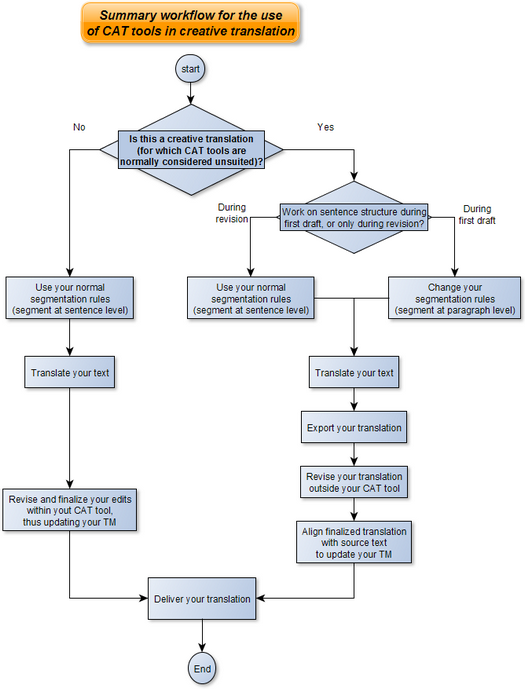
  • For certain translators the answer is "don't use CAT tools", but what if you want to take advantage of CAT tools helpful features without risk damaging the beauty of your translation? I believe that an answer is the following workflow:
  • First you change the segmentation rules in the translation tool, to segment not at the sentence, but at the paragraph level. If the segment on which you are working is an entire paragraph, the tool cannot lull you into using the same number of sentences, the same sentence structure or the same sentence order as the source text. You are free, for example, to move text from the beginning of a paragraph to the end, if that better suits your style.
  • After changing segmentation, next you should consider the translation produced in the CAT tool as a mere draft to be exported and fine-tuned outside the tool: this way you can perfect your final version in a word processor without being distracted by the sentence-to-sentence pairing offered by the CAT tool.
  • After revising your translation as a standalone document, you should finish your work by comparing it to the source, to make sure the meaning and style of the original are conveyed and preserved in the target.
  • Finally, in this workflow you create an updated translation memory by aligning the source text to the final draft produced outside the CAT tool. This way, your translation memory is up to date, and available for future projects, while your translation does not suffer the stiffness that may be introduced by mechanical use of CAT tools.


While I propose paragraph segmentation, I know that other translators who use CAT tools for creative translation prefer to start with normal segmentation. That way they are sure not to miss any sentence, and they take care of any necessary changes to sentence structure afterwards, when they revise their translation outside the CAT tool.


Both options of this workflow are illustrated in the following diagram:

Summary workflow for the use of CAT tools in creative translation
I've deliberately not given step-by-step instructions for specific CAT tools: Paul Filkin in his excellent blog  Multifarious already described how to use Studio for a similar purpose in his article Translating Literature... and you can adapt this method to other CAT tools.

Bear in mind that while this approach may suit transcreation or creative translation, it is not what works best when dealing with technical translations: it is a technique that helps slow you down, not speed you up. For most freelancers, it would give flexibility with one hand while taking away speed with the other. Besides, in technical, legal and most other commercial translations, preserving a similar structure between source and target is usually a good thing.

Tuesday, November 24, 2015

Three technical manuals for translators

Three books I highly recommend to translators interested in improving their technical skills:

Friday, August 28, 2015

Unhelpful help

I've often criticized SDL for writing very opaque documentation, and I have occasionally said Kilgray's help files are more useful.

That is not always true:

Unhelpful help screenshot

Either Kilgray is saying that to create your first memoQ project you have to enter some text in the help system, or they forgot to write that text themselves.

The most likely explanation is that this is an obsolete section title that should not have been included in the help system, of course - it does not appear in the online help. It does look funny, though, and could stump a beginning translator.