Showing posts with label Tools. Show all posts

Thursday, May 28, 2026

AI dictation for translators: convenience vs. confidentiality

I recently listened to an excellent presentation by Joachim Lépine, during which he mentioned several tools that may be useful for translators. One of them was Blip, an AI-powered dictation tool. I tried it, and it is very good. It handled my Italian-accented English without any difficulty at all, which is not always a given with this kind of software. Most of the time, my Apple TV comes up with rather strange titles when I try to dictate the name of a film or TV show.

But good output is not all that matters.

For translators, and especially for legal translators, the question is not only whether a dictation tool works well, but what happens to the content when you use it. If you dictate the translation of a contract, a certificate, or an HR policy, you are not just saving time and keystrokes. You are processing information that may be confidential, privileged, or otherwise sensitive. Once one looks at it from that angle, the difference between cloud-based and local tools stops being a technical detail and becomes the main issue.

This is why I ended up looking more closely at three dictation tools: Blip, Amical, and Lily Speech.

Blip

Blip is polished. That is the first thing one notices.

It is designed to let you press a hotkey, speak, and get usable text with formatting and cleanup already taken care of. It supports 99+ languages, and the whole point seems to be that you can dictate into practically any app without much friction.

That part works. In my brief test, Blip handled accented English very well. No nonsense, no repeated corrections, no need to slow down and pronounce everything in a staccato way, as with older dictation tools, or slowly as if one were speaking to a rather dim trainee.

That is the good news.

The less good news, at least for some kinds of work, is that Blip is cloud-based: the speech is processed outside your machine. For many tasks, that may be perfectly acceptable. If you are drafting an email, writing notes, or dictating blog ideas, there is probably little to worry about. It is a different matter if you are translating legal documents.

A cloud service may still be secure. But the material still leaves your local environment. For some translators, that will be enough to rule it out, at least for certain assignments.

Pros

  • Very easy to use.
  • Good formatting and cleanup features.
  • Broad language support.
  • In my experience, very good with accented English.

Cons

  • Cloud-based processing.
  • Not ideal for confidential or regulated material.
  • One more external layer in the handling of client data.

Amical

Amical is interesting for a more practical reason: it offers cloud processing, just like Blip, but it can run AI models locally as well. That makes it, at least in my view, a more serious option for translators dealing with confidential material.

This is the sort of distinction that product pages often mention as one feature among many, somewhere between “supports many languages” and “has useful shortcuts”. For our kind of work, however, it is not one feature among many. It is the feature. If I am dictating a draft translation of a contract, internal company policy, or some other document that really should not go wandering about beyond my machine, the local option becomes essential.

I tried Amical as well, and the general recognition quality was just as good as Blip’s. The difference is that with Amical, you can keep the processing on your own machine. That matters a great deal.

Pros

  • Offers cloud processing and local models.
  • Local dictation is available on the free plan, while cloud features are paid.
  • Better suited to confidential work.
  • Good recognition quality.
  • Presented as supporting local privacy and control.

Cons

  • Local use may require a bit more setup.
  • Performance depends more on your own hardware.
  • Slightly less “just press and go” than a cloud-only approach.

Lily Speech

Lily Speech is a simpler, older-fashioned sort of tool.

It is a Windows speech-to-text application with support for 51 languages. There is a free version, and that alone will make it worth a look for some users.

It belongs to an older generation of tools and is simpler than Blip or Amical. Sometimes that is perfectly fine. Not every tool has to be clever, ambitious, and determined to “revolutionise” one’s workflow before breakfast.

That said, for professional translators with heavier workflows, it will probably feel more limited. It is Windows-only, and its output does not seem to be on the same level as the newer tools. That is not a scientific comparison, merely the fairly obvious impression one gets from using them.

Pros

  • Simple.
  • Free version available.
  • Probably sufficient for basic dictation on Windows.

Cons

  • Windows-only.
  • More limited than newer tools.
  • Might have more problems with accented speech.
  • Less obviously suited to demanding professional workflows.

A few use cases

Suppose you are translating a share purchase agreement and dictating portions of your draft. Company names, payment terms, dates, clauses on warranties, indemnities, dispute resolution: all the material that should stay confidential. In that situation, a cloud-based dictation tool is not merely a nice productivity aid. It becomes part of the chain through which confidential information is processed.

Or take HR documentation. Internal disciplinary letters. Medical leave documents. Performance reviews. Perhaps civil-status documents as well: birth certificates, divorce decrees, adoption judgments. Here again, the issue is not whether the dictation tool is good, but whether this is content that should be sent off-machine at all.

This is why the difference between Blip and Amical matters more than one might think at first glance. Blip is convenient and well designed. Amical is more interesting where confidentiality is a genuine concern, because it gives you the possibility of local processing.

Final remark

If you often work with confidential legal or HR material, I would be much more inclined to look at Amical, simply because it gives you a local option.

Lily Speech is worth mentioning, especially for Windows users who want something free and simpler. But for most professional translators, the real comparison is between the other two.

Convenience is useful. Keeping client data on your own machine is the more important distinction.

Monday, July 05, 2021

Guest Post: The Studio Academy - Mastering File Types in Trados Studio

by Michael Widemann

Even though I have been using Trados products for nearly 20 years now, I only started digging deeper with the release of Studio in 2009. And this for a good reason.

As a project manager responsible for delivering multilingual translation projects to my clients, I am confronted with ever more different file formats, many of which are specific to only one client. This is especially true for XML. But there is so much more: Different versions of Microsoft Office documents, FrameMaker, InDesign, csv and text files, JSON or YAML. Every file type is based on a completely different concept and each new version comes with new features that make established processes redundant.

What I needed was a completely different approach to how I use Studio. The defaults were not good enough anymore.

Then, in 2009, I also started working as a Trados trainer where I had the chance to work with freelance translators, project managers at agencies and localization specialist in small and large companies all over the world. And what I soon began to realize is that – even though everybody has their own workflows – most of them work with Studio’s default settings. They install it and go for it.

And it works. Even if you have never worked with such a tool, the fundamental concepts are easy to understand: translation memory, concordance, terminology integration. Saves time and money. Great. Plus 51 file types right out of the box. Studio handles them all.

After all, this is Studio’s concept: Whether you know how InDesign works, what an XML file is made up of or have mastered the intricacies of JSON files – Studio makes it possible for you translate them. No questions asked. No job you need to turn down because you do not have the required software. Studio – even in its standard installation – extracts the text it deems translation-worthy and presents it to you in a uniform working environment.

Yet there seems to be a problem...

All these options might be overwhelming. How can you possibly decide on whether to extract content from Master Pages in InDesign documents, decide on the right Parser settings or if it is necessary to insert a UTF-8-BOM, for example, when you have no idea what this is all about? And what's the deal with regular expressions and segmentation rules?

This is the problem I aim to solve with “The Studio Academy”: The complete guide to mastering file types in SDL Trados Studio:

- Detailed explanations on all available file type options, based on real-world examples.

- Everything you need to know about the concept behind file types in order to make the right decisions.

- Bonus information on embedded content, regular expressions, segmentation rules, XPath, ....

These modules are for you if...

- You don’t want a piece of software to make decisions for you. You want to be in control.

- You want to customize Studio to extract only the text you actually need. Not more, and certainly not less.

- You want to create your own file types to have the best solution for unknown file formats.

- You want to be able to handle files that do not follow any standard (e.g., HTML files copied to Excel) by using embedded content, regular expressions and customized segmentation rules like a pro.

Where and when to customize file type settings


About the author:

Michael Widemann is a project manager at a translation agency and an approved Trados trainer with 20 years’ experience in the industry. He also works as a translator and has published several books, mainly about music, some of them with Cosoc Grand Palace Publishing (his own publishing company). He is responsible for the German version of the Xbench manual, loves finding new ways to improve his workflow and hosts the podcast “Keine Zeit”, a weekly talk show about productivity, communication, motivation, goals, life and whatever else can go wrong.

Friday, October 23, 2020

Guest Post: Bohemicus - a multifaced translator’s tool

by Jan Kapoun

Ever wanted to use machine translation or voice dictation in just about any CAT tool out there?

Well ... now, you can!

What is Bohemicus?

Bohemicus is a powerful translator’s tool. It integrates with your CAT tool (or any other application) to enhance its capabilities. It works like an interface. With Bohemicus, you can use machine translation, voice dictation (speech-to-text), your own translation memories, conveniently search in online/offline dictionaries, take notes, and much more… in CAT tools that do not actually provide such functionality by themselves. This way, your productivity and translation speed are greatly boosted.

Bohemicus enables you to work in professional software such as Across or Transit and to use machine translation or voice dictation, even if your software itself does not provide such functionality.

For a better understanding of what Bohemicus actually is all about, please watch the introductory video below:


Bohemicus: A program that’s actually on your side

Bohemicus has been created by a person who truly understands your needs: Jan Kapoun, a professional translator and IT developer with 13 years’ experience in the translation industry.

Machine translation in Bohemicus

Machine translation is provided by Google (paid service) or by MyMemory (free, but limited to 10K words/day).

To machine-translate a segment, simply press Ctrl+Space in your CAT tool. Bohemicus captures this command, translates your text behind the scenes and re-inserts the translation in the target language into your CAT tool.

Bohemicus works in several CAT tools: SDL Studio, Across, WordFast, memoQ, and DejaVu. In other tools, especially online tools like XTM or Coach, you just need to copy the source text into your target segment, select all the relevant text in this target segment and press Ctrl+Alt+Space. This will translate the selected portion of text.

Voice dictation

Voice dictation is based on the excellent Google speech-to-text engine, which functions even with minor languages, such as Czech, Slovak and Hungarian. To use this feature, it is necessary to download Bohemicus to your Android device (phone or tablet) and connect it through Bluetooth, with Bohemicus running in Windows 7/8/10. The Android and Windows instances of Bohemicus connect to each other automatically. Once you have established this connection, simply press the tilde key (~) on your PC keyboard (or tap the big blue B on your Android screen) to initiate the listening function. When you are done speaking, press the tilde key again to stop listening. Your speech will be almost instantly converted to text and inserted into your target CAT tool.

Offline/online dictionaries

To look up a specific word or term in your connected offline or online dictionary, simply select it in your CAT tool and press Ctrl+Alt+K and your offline/online dictionary will automatically appear on the screen, having looked up your word/term.

Bohemicus' Concordance Tab
Bohemicus’ Concordance Tab

Your own translation memories

When working in Across or in online tools like XTM or Coach you cannot use your own translation memories. This can really be a hassle, especially if you know that you have previously translated a similar text. With Bohemicus, you can connect your own translation memory and look up selected terms or even whole segments in it, by simply pressing Ctrl+Alt+K.

And more

Bohemicus also offers other useful editing functions, like a really neat note-taking feature, a clipboard manager for quickly inserting predefined strings... and much more.

About the author

Mgr. Jan Kapoun is a Czech linguist and programmer with a degree in Applied Information Technology (University of South Bohemia) and more than 13 years’ experience in the translation industry. He translates technical texts from English, German and French into Czech, and is continuously developing the Bohemicus software. You can try out his software downloading it from his web page: Bohemicus Software

Monday, July 20, 2020

Everything - A great freeware tool to find files on your computer

I've been using Everything as a search tool for finding files on my computer and home network for several years, and it is one of the few tools I really find I could not do without. 

Much better than Windows' own tools for searching files you know you have but that you can't quite remember where you put them... or even what the exact name of the file was. 

Wednesday, April 22, 2020

AIT Tools Free or Deeply Discounted "To contribute to the fight against the COVID-19 virus"

Besides Yamagata Europe (see my last post), AIT is also offering its tools for free (to medical translators) or deeply discounted “To contribute to the fight against the COVID-19 virus”. Here is the text of a message I received from AIT:
We hope you are safe and healthy. We also hope that you keep calm, stay home, and learn new tools for translators.
AIT joins in the international community’s efforts to contain a pandemic, and we’d like to support translators at this challenging time.
To contribute to the fight against the COVID-19 virus, all medical translators can get software for FREE! Please, contact the AIT customer support to get your license.
We wish to support you in overcoming this difficult period, so even if you do not work with medical translations, you can get an unprecedented 80% discount on all our software products for translators, to work from home safely, and be on the top:
Stay home, take care of older loved ones, and above all, stay healthy!
P.S. If you have friends or colleagues who are engaged in medical translation, please share this email with them, so they will be able to get the software for free.

Wednesday, April 15, 2020

Free Translation QA Tool to Help Fight COVID-19

I repost this message which I have received from Yamagata Europe:

Yamagata Makes QA Distiller Free For All to Help Fight COVID-19


From April 2020 onwards, Yamagata Europe will offer its QA Distiller software for translators and technical documentation professionals free of charge. Instead of paying for the software, companies who download QA Distiller will be invited to donate to Translators without Borders. 
The partnership with Translators without Borders (TWB) represents Yamagata Europe’s commitment to making sure everyone has access to information in a language they understand, especially during the fight against COVID-19. TWB is a non-profit organization offering language and translation support for humanitarian and development agencies worldwide. Donations will help TWB fulfill its mission to eliminate language barriers that prevent the dissemination of critical health information. 
TWB uses language expertise and technology to help people access health-related information. TWB offers translation of content for partners such as the World Health Organization (WHO) and Red Cross, monitors and prevents the spread of misinformation, and shares verified multilingual content. The need for this work is underlined by WHO Director-General Tedros Adhanom Ghebreyesus: “We’re not just fighting an epidemic, we’re fighting an infodemic.” 
The most trusted QA tool since 2004
QA Distiller is a stand-alone tool developed by Yamagata Europe that makes it easy to find formal translation mistakes in bilingual files. You can use QA Distiller to detect inconsistencies, terminology mistakes, wrong numbers, missing brackets and much more.
The free QA Distiller version will include all features of what was previously the Professional License, with support for over 90 languages. QA Distiller users will also benefit from regular updates, including new features and languages, and basic usability and functional support by Yamagata Europe.
Today, QA Distiller has over 1,000 satisfied users. Yamagata Europe developed the tool originally to fulfill its own need for improved language consistency checks after translation. QA Distiller was first presented to the industry at the Localization Industry Standards Association (LISA) congress in Saint Petersburg in 2004. A commercial release followed later that year.
QA Distiller was always offered on a ‘buy once, use forever’ basis, with the addition of an online license check. Basic support was always free and optional support & maintenance contracts with free upgrades were added a few years after the launch.
The software came in three versions: Freelance, Professional and Enterprise. From April 2020 onwards, only the Professional version will be available, free of charge. This version will not be limited in the number of languages and there will no longer be a license check.
The current version and license server will continue to be accessible until the end of April 2020. Current users can visit our QA Distiller support page to find info on how to switch to the new version.
Fight the COVID-19 infodemic: donate to Translators without Borders
A donation to TWB will help the organization fight the current infodemic. According to TWB’s Head of Fundraising and Communications, Sharda Sekaran, “Since the outbreak of the COVID-19 pandemic, people more than ever need access to accurate information in a language and format they understand. The donations through this partnership will support TWB, so that we can support the emergency response.”
Download and donate now!
You can make donations starting from $10, but we hope that companies will find the generosity to donate substantially more.

Sunday, April 28, 2019

Term Extraction Using Concordance Tools

Yesterday, at the 9th annual conference of the Colorado Translators Association, I gave a new presentation: "Term Extraction Using Concordance Tools". I think it was well received: lots of colleagues attended, and several had various questions to ask at the end.
I've posted the presentation (in embedded form) in the "Other Presentations" tab of this blog, from which you can also download a copy. At the end off the presentation there are links to all the programs mentioned.

Tuesday, February 20, 2018

Infographic: Software Tools for Translation

I'm currently developing a course on CAT tools for the University College of Denver University.
I find mind mapping useful to generate and organize my ideas, so I created a mind map of the kind of software tools used by translators - CAT tools, of course, but also other types of tools, from those that help us manage our projects, to those we use for more specific tasks.

I asked Jost Zetzsche to take a look at my mind map, to see if he had any suggestions about types of programs I might have forgotten or things that should be changed.


Jost gave me some suggestions, and asked for a copy of the infographic for his Tool Box Journal.

Here is a copy of the infographic:
Software Tools for Translation

You can click here for a larger copy of the file, and here for a downloadable pdf.

I'd appreciate any suggestion or idea for future improvements.

Thursday, September 14, 2017

The Microsoft Language Portal has a new look

The Microsoft Language Portal, an indispensable resource for all translators who work with Windows software localization, has just received a new look, which brings it better in line with recent changes to other Microsoft programs, from Office to Edge and Windows itself.

The new look of the Microsoft Language Portal

Personally, I find the new look, more modern--and perhaps more attractive--but a bit less legible.

Compare the old look below:

Th old look of the Microsoft Language Portal


The addition of more color to the interface helped separate the search form from the results area. The old look also displayed more terms per page:

The old version of the Microsoft Language Portal displayed more terms per page
I haven't worked long enough with the new interface to see if there are other changes other than the obvious cosmetic ones.


Tuesday, September 27, 2016

memoQ fuzzy match blues

In the past, I've criticized SDL and its programs for offering as "fuzzy matches" sentences that were far from helpful.

But the worst I've seen from SDL doesn't even compare with some absurd fuzzy matches that memoQ is suggesting. See for example:


I cannot understand how the matching engine in memoQ is suggesting as a 98% match for "Legal Entity" the translation for "CALL 1-800-555-5555".

Friday, July 08, 2016

Studio QA: actual vs. irrelevant differences

SDL Trados Studio seems to be unable to distinguish, in its QA function, between actual markup differnces (e.g., between italics and bold), and trivial differences in the way the markup is written, and that don't affect correctness of a translation.

See, for example, how Studio is flagging as an error the difference between <cf bold="True"> and <cf bold="true">, where the only difference is the capitalization within the markup:

Both tags are equally valid, and produce the same effects, so flagging a difference like this as an error is only a waste of time. By the way: I tried running QA on the same text in Xbench, and Xbench correctly refrains from flagging this as an error.

Wednesday, July 06, 2016

Quick Tip: How to put the search boxes side by side in Xbench

Recently I had to explain to a colleague how to move the search boxes in Xbench so that they appear side by side instead of one over the other, as they do by default.

I had arranged mine side by side quite some time ago, but couldn't remember how it is done, nor could I find it easily in Xbench documentation. Finally, I had to ask ApSIC for help.

How to do it, is very simple: just grab the division between the options pane and the Search pane, and move it upward.


Monday, June 20, 2016

The trouble with Memsource

A major customer of ours recently switched from SDL Trados Studio to Memsource.

I don't know why our customer (a translation agency) chose Memsource. Probably a mix of several reasons, including that no software needs to be installed, since Memsource works in the cloud. Also, they can peddle it to translators as a "free" tool.

Memsource may be suitable for simple projects, but for more complicated ones and for advanced users it suffers from several serious drawbacks.

The most serious is that in the free version of Memsource you can't use your own memories and termbases—the program lets you work only on projects prepared by translation agencies, and only using the resources selected by them. Possible solutions to this are:
  • Upgrade to a paid version of Memsource, in which case you can add your own memories and termbases to a project. 
  • Load your translation memories and termbases in Xbench (or a similar tool), and use Xbench to search them. If you do this, however, you can use your resources only for reference—Xbench doesn't offer any automatic way to add new segments to a memory. Also, this workaround needs extra steps, so it slows you down.
  • Use a different program (such as memoQ) to translate your Memsource projects. Yet, if you do so, while you can use your own memories, you lose access to Memsource's ones. 
Another problem is that sometimes Memsource is painfully slow, even on a fast Internet connection. In certain segments of a recent project, 9-10 seconds passed between the moment I hit a key and the time the corresponding character appeared—this meant typing blind. When I complained about this to Memsource support, they told me the segments in question contained joins, tags, and were long, and this slowed online processing. I believe this speaks volumes about the limitations of the tool, although, to be fair, a Memsource representative told me they know of this bug and are working to correct it.

Memsource looks and acts like a stripped-down version of more powerful tools. This might be good for those who feel overwhelmed by too many choices, but experienced translators miss the advanced features they expect from professional translation tools. The first flaws that come to mind are:
  • Far fewer find and replace options than memoQ or Studio; 
  • Find and replace in memoQ, Studio and Memsource
    Find and replace in memoQ, Studio and Memsource
  • No such thing as memoQ's LiveDocs and Muses, or the wealth of added features SDL offers through the Open Exchange;
  • Limited segment filtering when compared with memoQ or Studio—for example, no regular expressions in the filters;
  • No auto-complete in the desktop editor;
  • Fixed screen layout. You cannot increase the size of the lower panes (CAT, Search, Changes). The little you can change, such as moving the panes from the right of the screen to the left, you can't save: next time you reopen the program, the panes are back where they started.
  • No way to show tracked changes inline in the Memsource editor—you can only see the differences in the Change pane, and that is not enough.
The lack of advanced features, the occasional slowness, and the fact you either cannot use your own memories and termbases or have to rely an external tool to search them, means that Memsource makes you less productive. According to our estimate, confirmed by what other colleagues say, we suffer a 30% drop in productivity when we work in Memsource instead of memoQ or Studio.

The supposed advantages of using Memsource

If Memsource was all bad, nobody would use it. So, what advantages does Memsource offer?

According to a Memsource representative, the main advantages are that it's cloud based, that it allows simultaneous access by several people to the same translation memory, and that for translators it's free.

Let's look more closely at these claims.

For translation companies, using a cloud-base tool may offer an enticing benefit: no need to install anything locally, and no need to migrate data when changing from one version of a program to a newer one, thus avoiding the risks associated with such migrations—though I wonder if these risks, far from being cut out, are instead passed to Memsource and to their staff in charge of the cloud servers.

Also, a cloud based tool means that project managers can work on the program remotely, even without personal computers: they can create and manage projects using a tablet or even a smartphone. I doubt, though, whether trying to create and manage projects using smartphones would be wise.

For translator teams and for translation companies another claimed advantage is that Memsource allows simultaneous read and write to the same memory in real time. I normally work on projects where I am the sole translator or editor, so this isn't much of a benefit for me. Even for projects with multiple translators, though, updating the same memory in real time can lead to fast spreading of undetected errors. Better to wait until a job has been edited and proofread before sharing the memory with others. Project managers may set up memories in Memsource so that only translations that have been reviewed and corrected are shared with others, but in my experience many project managers either are unaware of this feature, or choose not to use it.

Memsource is "free" for translators.
  • This is irrelevant for translators who have already paid for tools they have chosen themselves, and, if you wish to use you own translation memories and termbases in Memsource, you have to pay. A way to sweeten the deal for more experienced translators would be for Memsource to allow using a translator's own memories and termbases even in the free version.
  • A "free" tool is a real advantage only for beginners or occasional translators, who might be reluctant to pay at the start of their career for a more powerful program. Still, even if you are a beginner or occasional translator, relying on a tool that prevents you from building up and using your own translation memories is, in the long run, self-defeating. In fact, I think that beginners would be better served by other free tools—from OmegaT to Wordfast Anywhere—since they allow you to keep control of your own resources.
Overall, working in Memsource feels as I imagine a carpenter would feel if, after assembling during his career a rich set of specialized and high-end tools, his customers demanded that he use instead the simplest tools available at a dollar store and suitable only for the occasional user.

The developers at Memsource know that they still have much work to do: they started development only a few years ago, so more mature tools such as Déjà Vu, Studio or memoQ have a huge head start on them. But until Memsource catches up with its competitors, there isn't much in the program to appeal to professional translators.

Thursday, June 02, 2016

A step back to the past: translating without a CAT

I'm working on a large translation project. Legal documents, scanned pdf files, not really suitable for OCR (too many stamps, signatures and handwritten text). The documents are repetitive, but without major blocks of identical text, although a few occasional sentences appear almost unchanged on different parts of different files.

This is exactly the kind of project (minus the "scanned pdf, not really suitable for OCR" part) that CAT tools were invented for. I'm translating these documents with the pdf open on the left of the screen, and MS Word on the right. My fingers itch for the concordance and filter shortcuts, but that is not possible here: I cannot really search the source (although there is a way to do it... more about that later), and while I can search the files I have already translated, I cannot perform a real concordance search.

This is the way we all translated up to a little over twenty years ago, when CAT tools were first introduced. Even without CAT tools, though, I enjoy a much larger and clear screen, a more modern word processor, and a fast Internet connection for looking up references. Still, it feels like going back almost to the days of pen and paper. I know that there are translators who still work this way, who refuse to use CAT tools, and who maintain that the only translation memory they need is the one they have between their ears. The only thing I can say is that everyone is entitled to their opinion, but that they should give CAT tools a try.

If you are accustomed, like me, to work on most projects using CAT tools, there are still a few things you can do if you find yourself faced with a large project to be completed using just a word processor.
  • If you know there are words, phrases and sentences that repeat themselves throughout the project, you can speed up things using a text expander program. MS Word includes similar functionality, but I prefer to use an external tool to have more control on what I do. In my case I use AutoHotkey. This scripting program allows me to create pairs of triggers and sentences. For example I can add to my triggers "<PBC", which then expands to "Provincia della Columbia Britannica." If you use a text expander, pay attention not to use as trigger a combination of letters that could appear normally in your writing, otherwise you risk getting garbage words: if you use the trigger "PR" as a shortucut for "Provincia" but then try typing "professionista", you end up with the garbage word "Provinciaofessionista". That is the reason I always add the "<" character at the beginning of my triggers.
  • Even If I cannot use CAT tools on this kind of project, I can still use translation memories and glossaries: I load them in Xbench, and use it as a search engine. I can even use Xbench shortcuts to highlight text in MS Word and transfer it to the Search box in Xbench.
  • Scanned pdf files are not normally searchable... at least not with a free pdf reader. The Pro versions of modern pdf tools, however, include OCR. So if you have Nitro Pro, for example, it indexes your scanned pdf files if their quality is good enough; you can then search them. The results won't be perfect, but better than nothing. Nitro Pro is pricey ($ 160 for the desktop version), but for a one-off project you can download the free trial version: this is exactly what I've done for this project. If you find the Pro version of Nitro useful (besides OCR, it offers a bunch of other functions), you may well decide to pay for it: it depends on how often you have to deal with scanned pdf files.
  • If you can put all your translation in a single file, MS Word search is excellent, but what if you have to create a separate word file for each of the many source files? What can you do, for example, if you want to know if you have used a certain term in previous files? In a CAT tool you can do that easily, either using the search function or, better, using filters. You can do the same on MS Word files using specialized search tools. In my case, to search the .docx files I created for this project, I used FUNDUC's Replace Studio Pro. If you decide to give Replace Studio Pro a try, read carefully the section of the help file devoted to searching and replacing in docx files. Replace Studio Pro works on many kinds of files, including .docx files. If you have to search in old-style .doc files, though, you need to use Word Search and Replace, a freeware utility again by FUNDUC. Be aware that searching in multiple MS Word files using an external tool is easy enough, but if you want to replace words you have to tread carefully, in order not to damage your files: if you damage them, MS Word might no longer be able to open them.

So, if you find yourself stuck with old-style files that cannot be translated easily in a CAT tool (some CAT tools try to give their users the ability to work even with scanned pdf files), you still have at your disposal a wealth of useful options to help you: no need to be stuck with the primitive techniques we used a quarter of a century ago.

After working for three days on this project, all I can say is that I'm amazed, in hindsight, that in the bad old days we were able to translate more than a thousand words a day. CAT tools are real time savers, and they do wonder for the consistency of our translations. They don't translate better for us, but they help us be better and more productive.

Monday, May 09, 2016

WordWeb Pro: dictionary and multi-search application

A few posts ago, in my article on Reverso Context, I mentioned several multi-search applications from which Reverso could be called. One of these, the one I use the most, is WordWeb Pro.

WordWeb Pro is chiefly a dictionary: in its free version (more about that, and its unusual licensing terms, later) it comes with a large English language dictionary that offers synonyms, antonyms, other useful features such as subordinate and superordinate categories, the ability to restrict searches to a specific grammatical category and to search, from within the program, also Wikipedia and Wiktionary.

WordWeb Pro
WordWeb Pro
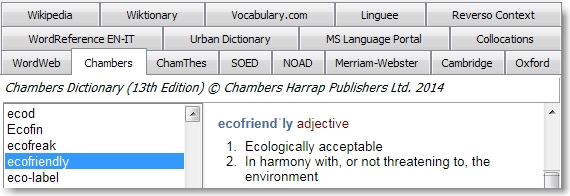
The Pro version adds optional dictionaries, for example the Shorter Oxford English Dictionary, Chambers Thesaurus, the New Oxford American Dictionary and several others (but you have to buy them separately). It also allows adding your own glossaries, adding terms and definitions to the main dictionary, and adding searches from many online dictionary and search engines. I've added, for example, the Microsoft Language Portal, Google Advance Search, Linguee, Reverso Context, the WordReference EN-IT and several other specialized monolingual and bilingual dictionaries.

WordWeb Pro's tabs—with the dictionaries and searches I use
The full list of features is too long for a short article, but they include:
  • Thesaurus and dictionary for Windows 
  • Customizable hotkey, which allows instant look up from almost any program 
  • Restricting the search for synonyms and antonyms by part of speech
  • Full text search (so you can search within the definitions)
  • Adding your own glossaries 
  • Using various patterns and wildcards in searches (useful when you are looking for a word but you aren’t sure how to spell it) 
  • X-Ref button to extend the search to other dictionaries installed on the computer 
  • Adding new words or sets of words with their definitions and usage examples to the dictionary 
  • Importing and exporting the added terms to common spreadsheet-format files 
  • Bookmarks (for example, to remember past searches: useful to keep track of which words and terms most often give you problems) 
  • Replace button to substitute a synonym in a document you are editing 
  • Possibility of using the tool without the need to be online (for the installed dictionaries only: you need to be online to use the web search).
I use WordWeb in two different ways: to quickly search its main dictionary and thesaurus, and as a multi-search tool that allows me searching several dictionaries and websites all at the same time.

To add a new search site to WordWeb Pro, follow this procedure:
  1. Go to the Options menu
  2. Select Dictionary tabs...
    The Dictionary tabs window opens
  3. In the Dictionary tabs Window, click the New button
    The Web reference window opens
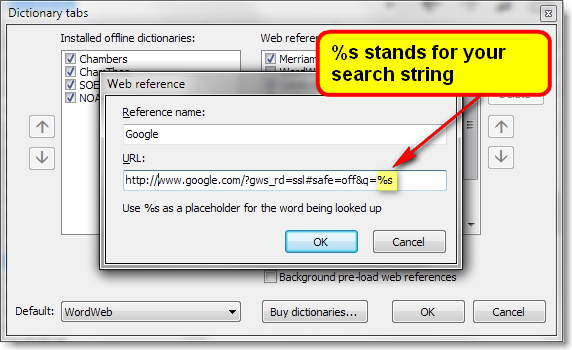
  4. Give a name to the new web reference (the new search), and add its URL (web address), using “%s” as a placeholder for the search term.
So, for example, to add Google, you put Google as the name of the search engine and https://www.google.com/?gws_rd=ssl#safe=off&q=%s as the search strings.

How to add a new search engine in WordWeb Pro
The best way to find where to put your placeholder in the URL is to perform a search and then examine the URL of the retrieved page to see where the search string goes. So, for example, to see which URL I needed to add, I searched for the word “test” in Google. Google converted that to the URL https://www.google.com/?gws_rd=ssl#safe=off&q=test and I then replaced “test” with the placeholder “%s” in that URL, to get the search string to use in WordWeb.

WordWeb Pro allows adding dozens of search engines but the number of tabs provided is limited to twenty-one or so—you can, however, select and deselect the ones you have added depending on which sites you need to search.

If you don't want to pay for WordWeb Pro, you can use WordWeb Free to evaluate the program (minus the Pro features), but if you continue using the free version instead of upgrading to Pro, the requirements to be eligible are fairly peculiar (and eco-friendly): WordWeb Free may be used indefinitely only by people who take no more than two commercial flights (and only one return flight) in any 12-month period—to restrict the free version to people who limit their carbon footprint.

Thursday, May 05, 2016

An update to my Reverso Context review

I've received a message from Théo Hoffenberg of Reverso, with some additional information about Reverso Context:
Hello Riccardo,

Thanks a lot for your review of Reverso Context. I would like to give you some additional comments or info, which you can use if you wish.

It’s true that it’s similar in approach to Linguee, and by the way, we had this design and plan five years before Linguee, but we wanted to have enough corpora and computing power to launch it at the level we aimed at.

It’s true also that Linguee has more languages and language combinations, but we’ll also expand and try focus on the main markets first, because we go much deeper for each language combination.

What is unique about Reverso Context
  • Main translations on top are computed by our algorithms and shows you the alignment. This requires a lot of engineering, linguistic and computing time to make the alignment as good as possible;
  • You can pronounce full examples, which is nice for learning;
  • You can save examples in your phrasebook (online and on the app too, and soon synchronized);
  • You have both spoken language (real-life) and official documents (more formal / technical) like EU, UN … and other tools have one or the other;
  • There is intelligent conjugation and definitions dictionaries linked for several languages;
  • It’s integrated in Reverso ecosystem with collaborative dictionary, full-text translation, conjugation, spelling, etc. 
Hope this info is useful to you. Don’t hesitate to contact me if you need more info / insight.

Best

Théo H.
I included Théo's message also as an update at the bottom of my review of the tool (Reverso Context, an app for language learners that can also help translators).

Friday, April 29, 2016

ChangeTracker website redesigned

Technolex Translation Studio, a provider of language services, has redesigned the website for ChangeTracker, an application for tracking editorial corrections in translations.

I wrote about Change Tracker in a previous post (New utility to keep track of changes in bilingual files). I'm glad there there are signs of new development for this useful utility!


Monday, April 25, 2016

Quick Tips: when Studio cannot create your target file

You know that sinking feeling when you have completed a carefully crafted translation in Studio, spell-checked and self-edited it, then run it through QA (using Studio's internal QA function and/or Xbench) - only to discover that when you try to export your target translation, Studio refuses to create it, saying there is something wrong with your MS Word file?

It is only at that moment that you remember you should have round-tripped the source file first thing, before translating it, to see if it would convert back cleanly.

If this happens to you, don't panic: there is (usually) a quick solution.
  1. First, just to be sure, save everything: your translation with its memory.
  2. Then create a new project. Add to it a copy of the memory you used, and the original file (or files) you had to translate.
  3. The project should pretranslate your file for you. There may be a few segments left untranslated (if you split or joined them). Don't do anything to them yet.
  4. Try exporting the target file. If the program succeeds, go back to the (new) project, complete any missing segment (joining and/or splitting them as necessary), and export your target file. If the program manages to do that, you are done.
Most likely, however, #4 here above will fail with the same error message you got the first time round. At this point there are still things you can try:
  1. Open your source MS Word file, and save it in two different formats. If your source was a *doc file (MS Word 2003 or earlier format), save it as both an *.rtf file and as a *.docx (MS Word 2007 or later format). If it was a *.docx file, save it as both *.doc and *.rtf--and if it was an *.rtf file, save it as both *.doc and *.docx file.
  2. Add the two new versions of the file to your new project. Pre-translate them. Try to save them as target. Most likely one of the two versions will save cleanly as target. If it does, you are done--you have a clean target file, and, if you need, you can then save it in the format needed by your client. 
If none of the new files saves correctly as target, you are out of luck and of quick solutions. If you have a support agreement with SDL, now is the time to open a ticket. If you don't, start looking on the SDL knowledge base and elsewhere online for more specific solutions.

This quick trick may not work always, but it works often enough that it should be in your bag of SDL Trados Studio tricks.

Monday, April 18, 2016

Reverso Context, an app for language learners that can also help translators

A few months ago Reverso announced the release of Reverso Context as an app for iOS and Android, also available as a web page. I downloaded the app, and found something that will look familiar to users of Linguee: translations of words and phrases in context (hence its name).

The app has a slicker interface than Linguee and offers more functions and commands (see the screenshot below).  It records a history of your searches and their results -- a good way to find which terms to add to your glossary, although this function would be more useful if it included a way to download your history.

You can propose alternative translations and explain why the translations suggested are bad. And you get links to several other Reverso applications including free bilingual dictionaries.

The Reverso Context interface, with some of its features
  1. Search
  2. Search in Reverso dictionaries
  3. Reference to other searches
  4. Translations of the search term
  5. Filter on the target language to refine the search
  6. Translations in context
  7. Make favorite
  8. Copy the translation
  9. Add translation to Reverso Collaborative dictionary
  10. Report a problem in this example (for example, wrong translation)
  11. See translation example in context (that is, go to the site where this translation is used)
Reverso Context is aimed at language learners more than to translators. According to their literature:
"This way, users can seamlessly improve their foreign language skills in a way that’s not available in any other similar tool, learning how to use new words and expressions in their day-to-day lives just like native speakers do."
The claim of uniqueness is exaggerated, since the main functionality of Reverso Context (showing translations of words and phrases in context) is something that Linguee also does. Just like in Linguee, the prudent translator should check if the site from which the proposed translation comes is authoritative and reliable.

As for contents, sometimes Linguee has better translations, and sometimes Reverso has an edge. The major differences are that Reverso Context offers fewer language pairs than Linguee, and that Linguee leans towards Europe Union documents, offering perhaps more real-world material.

But we don't need to choose one tool over the other: the best way to take advantage of these apps is to use them both, together with your other favorite linguistic search engines, in a multisearch tool. I use them through WordWeb Pro (which I'll review in a forthcoming article), but you could use other tools, for example through IntelliWebSearch, Multifultor or even Xbench.

Reverso Context offers 10 different languages (v. Linguee's 25 languages), and while in neither tool all languages are translated into all other languages, the number of language pairs is greater in Linguee.

Reverso Context is a useful addition to our terminology toolbox. The app works in iOS, Android, Windows, and as a web page that can be used through a browser. Unlike Linguee, it displays ads -- but they are unobtrusive. Very useful.

Update

I've received the following message from Théo Hoffenberg of Reverso, with additional valuable information:
Hello Riccardo,

Thanks a lot for your review of Reverso Context. I would like to give you some additional comments or info, which you can use if you wish.

It’s true that it’s similar in approach to Linguee, and by the way, we had this design and plan five years before Linguee, but we wanted to have enough corpora and computing power to launch it at the level we aimed at.

It’s true also that Linguee has more languages and language combinations, but we’ll also expand and try focus on the main markets first, because we go much deeper for each language combination.

What is unique about Reverso Context
  • Main translations on top are computed by our algorithms and shows you the alignment. This requires a lot of engineering, linguistic and computing time to make the alignment as good as possible;
  • You can pronounce full examples, which is nice for learning;
  • You can save examples in your phrasebook (online and on the app too, and soon synchronized);
  • You have both spoken language (real-life) and official documents (more formal / technical) like EU, UN … and other tools have one or the other;
  • There is intelligent conjugation and definitions dictionaries linked for several languages;
  • It’s integrated in Reverso ecosystem with collaborative dictionary, full-text translation, conjugation, spelling, etc. 
Hope this info is useful to you. Don’t hesitate to contact me if you need more info / insight.

Best

Théo H.


Saturday, April 16, 2016

Quick Tips: yEd Graph Editor, a good quality (and free) diagramming software

If you ever need to create a good quality diagram, but don't have available Visio or a similar program, try yEd Graph Editor, by yWorks: a good quality, easy (and free, even for commercial use) diagramming program.

I used yEd to create the flowchart I used in my post Cat tools and translation style.