Showing posts with label Trados. Show all posts

Monday, July 05, 2021

Guest Post: The Studio Academy - Mastering File Types in Trados Studio

by Michael Widemann

Even though I have been using Trados products for nearly 20 years now, I only started digging deeper with the release of Studio in 2009. And this for a good reason.

As a project manager responsible for delivering multilingual translation projects to my clients, I am confronted with ever more different file formats, many of which are specific to only one client. This is especially true for XML. But there is so much more: Different versions of Microsoft Office documents, FrameMaker, InDesign, csv and text files, JSON or YAML. Every file type is based on a completely different concept and each new version comes with new features that make established processes redundant.

What I needed was a completely different approach to how I use Studio. The defaults were not good enough anymore.

Then, in 2009, I also started working as a Trados trainer where I had the chance to work with freelance translators, project managers at agencies and localization specialist in small and large companies all over the world. And what I soon began to realize is that – even though everybody has their own workflows – most of them work with Studio’s default settings. They install it and go for it.

And it works. Even if you have never worked with such a tool, the fundamental concepts are easy to understand: translation memory, concordance, terminology integration. Saves time and money. Great. Plus 51 file types right out of the box. Studio handles them all.

After all, this is Studio’s concept: Whether you know how InDesign works, what an XML file is made up of or have mastered the intricacies of JSON files – Studio makes it possible for you translate them. No questions asked. No job you need to turn down because you do not have the required software. Studio – even in its standard installation – extracts the text it deems translation-worthy and presents it to you in a uniform working environment.

Yet there seems to be a problem...

All these options might be overwhelming. How can you possibly decide on whether to extract content from Master Pages in InDesign documents, decide on the right Parser settings or if it is necessary to insert a UTF-8-BOM, for example, when you have no idea what this is all about? And what's the deal with regular expressions and segmentation rules?

This is the problem I aim to solve with “The Studio Academy”: The complete guide to mastering file types in SDL Trados Studio:

- Detailed explanations on all available file type options, based on real-world examples.

- Everything you need to know about the concept behind file types in order to make the right decisions.

- Bonus information on embedded content, regular expressions, segmentation rules, XPath, ....

These modules are for you if...

- You don’t want a piece of software to make decisions for you. You want to be in control.

- You want to customize Studio to extract only the text you actually need. Not more, and certainly not less.

- You want to create your own file types to have the best solution for unknown file formats.

- You want to be able to handle files that do not follow any standard (e.g., HTML files copied to Excel) by using embedded content, regular expressions and customized segmentation rules like a pro.

Where and when to customize file type settings


About the author:

Michael Widemann is a project manager at a translation agency and an approved Trados trainer with 20 years’ experience in the industry. He also works as a translator and has published several books, mainly about music, some of them with Cosoc Grand Palace Publishing (his own publishing company). He is responsible for the German version of the Xbench manual, loves finding new ways to improve his workflow and hosts the podcast “Keine Zeit”, a weekly talk show about productivity, communication, motivation, goals, life and whatever else can go wrong.

Friday, April 16, 2021

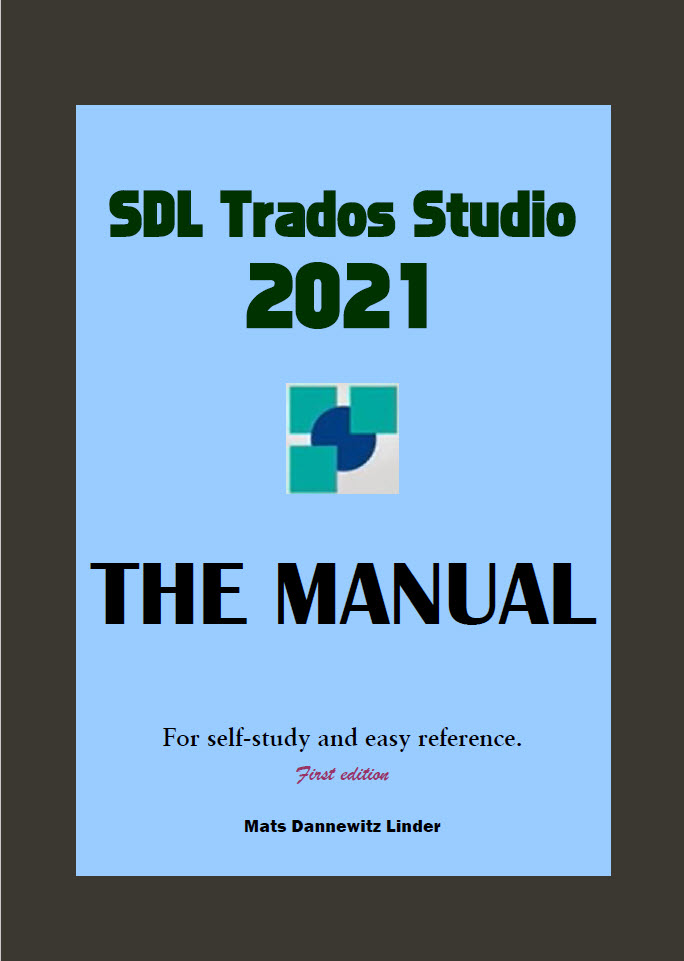
Trados Studio 2021 - The Manual

Mats Linder has just published a new edition of his excellent Trados Studio manual, now covering version 2021 of the tool.

Cover of Trados Studio 2021 - The Manual


As usual, Mats has done a thorough job of describing the details of the new version of the tool, with one important exception, that Mats explains at the beginning of the new manual:
The 2021 version [of the tool] is mainly about the introduction of SDL Trados Live [...] The online editor will require many pages of documentation before it is covered to the same depth here as Studio. Upcoming editions of the 2021 manual will provide such documentation
So, the new manual covers other important changes introduced by SDL (now RWS) in the new version of the tool, but doesn’t describe (yet) the details of Trados Live, the online version of the tool.

Still, while we wait for Mats to also cover the new online tool, the 2021 manual is essential reading for all translators who want to make the most of the new features in the tool, including, for example, improvements to the advanced display filter.

As usual Mats provides also a version of the manual which highlights the changes made to the previous edition. I’ve always found the highlighted version to be particularly useful: the highlights help readers skip to the places of the book which describe changes or new features.
You can buy the Manual (or upgrade to the new edition) from Mat’s web page: SDL Trados Studio - The Manual

Tuesday, May 21, 2019

New edition of Mats Linder invaluable SDL Trados Studio Manual updated for SDL 2019 SR1

Mats Linder's SDL Trados Studio - The Manual has now been updated with a new edition - the second for SDL Trados Studio 2019, to cover changes introduced with service release 1 (SR1) of the program.

The manual is now grown to 598 pages, and includes 30 pages on machine translation -- useful for many translators, considering the ever-increasing presence of MT in many projects.

The price is USD 52 or 49 Euro for new users (or half of that for those who bought previous versions of the manual).

I highly recommend it, since it complements (and mostly supersedes) SDL's own badly written documentation: Mats writes in a way that any user of SDL Trados studio will find useful.

Thursday, March 01, 2018

Re-Posting from the Xbench Forum

I'm re-posting this directly as it appeared on the Xbench forum, as it may be of interest for all those who use Studio and the Xbench Studio plug-in:
With SDL Trados Studio 2017 Cumulative Update 9 (CU9) the Xbench Edit Segment (Ctrl+E) feature may stop working (it does not open the Studio document).
To be able to use the Edit Segment functionality after you updated your Trados Studio 2017 to CU9, just download and install the latest Xbench plugin for Studio (build 13)

Monday, October 23, 2017

Bad programming decisions in CAT tools

Everyone knows what software bugs are: flaws in a program that make the software fail or behave in unwanted and unexpected ways. Bugs are unavoidable in something as complex as software. The most we can reasonably ask of programmers is that they try to lessen the frequency and severity of bugs by using sound programming practices, and that they correct bugs quickly, once found.

Bugs are unintentional, whereas virus, Trojans and other malware are created with malicious purpose.

But, between unintentional bugs and willful malware, there is an entire class of problems caused by intentional programming decisions: when software features work as designed, but the design itself is ill-thought-out.

I'll give two examples from SDL Trados Studio and memoQ.

In Studio, an example of flawed design is the deliberate disabling of "smart quotes" when change tracking is active. According to SDL, "This currently is by design so that no uncontrolled/automatic changes should happen when typing in review mode." However, they didn't think through the real-world consequences of their decision: now, a translator may use smart quotes during translation, but since they are disabled during review, any apostrophe or quote entered during review will be straight. After review, the text of the translation will contain a mess of straight and curly quotes and apostrophes.

SDL Studio: The translator used smart quotes, but the apostrophe used during review is a straight single quote.

Furthermore, apostrophes and quotes are tiny characters: it is entirely possible no one will notice the problem for a while. The first person to notice might very well be the customer... perhaps when he receives the final printed copy, after it is too late to correct the error.

Disabling smart quotes when change tracking is active is harmful, and the problem is made worse because it is not well documented.

For me, I have a good workaround: a short program I wrote in AutoHotkey that allows me to use two different types of smart quotes (and also straight quotes) with no tweaking of Studio's settings, no matter whether change tracking is active.

Maybe, under certain circumstances, it would be better to disable smart quotes during review, but this is a decision that should be left to the translator, not imposed by SDL.

Let's now pass to Studio's main competitor, memoQ.

Here, the flawed feature is a change introduced with version 8 of memoQ: a new behavior, touted as an ergonomic improvement, of the Shift+F3 "change case" function.

Before version 8, Shift+F3 behaved in memoQ much the same as in Word, Studio, or many other programs--it toggled through the various permutations of change case: all lowercase, ALL UPPERCASE, and Mixed Case. Now Shift+F3 opens a drop-down menu, where the user can select the case.

memoQ: An unecessary drop.down menu for a simple function.

The result is the same, but the new "feature" hinders smooth typing by shoehorning in the workflow a change no user had sought. The new behavior slows a translator used to hit Shift+F3 a couple of times, until the desired case is achieved, then press the right arrow and continue typing. Changing case now often requires at least an extra keystroke; worse, it introduces an unnecessary change in a behavior that most users had imprinted in their muscle memory. And since Shft+F3 continues working as before in other programs, the irritation caused by the change will not fade away as you form new habits.

Unlike with the Studio example, there is no workaround: the only thing you can do is return to memoQ 2015, abandoning any useful feature added in version 8.

I imagine that if Kilgray introduced this new feature, someone must have either asked for it or thought it was a brillant idea. Instead, just like SDL's disabling smart quotes in change tracking mode, it is a bad programming decision.

Special free software offer


As I mentioned before I use a short AutoHotkey program to enter smart quotes and apostrophes in Studio. The program lets me enter "smart" single and double quotes, curly apostrophes, "French"double quotes, and also, when I need them, "straight" double and single quotes.

This works for me and would work for other Italian translators as well. If you need a copy of this utility, let me know, and I'll be happy to send it to you "as is".

I can customize (for a small fee) this utility to use different sets of single and double quotes. If you are interested, please write me (you can use the contact form in this blog).

Friday, October 06, 2017

New edition of Mats Linder's Trados Studio Manual now available

Mats Linder has just released a second edition of his immensely useful Trados Studio Manual, now updated to cover Studio 2017 SP1.


Of particular interest are the extensive changes and additions to the Machine Translation section.

The new edition of the manual is free for those who purchased the first edition of the Studio 2017 manual, and available at a 50% discount for those who purchased earlier editions of the manual (those for Studio 2015, 2014, etc.)

You can get the manual from the Trados Studio Manual webpage.

Thursday, October 05, 2017

Belt and Suspenders

Some of us may have a tendency to panic, when faced with some unexpected computer error (and such incidents generally occur when little help is available, or very close to deadlines, or both), but there are steps we can take to defend ourselves from the worst effects of such mishaps.

On Sunday, my partner's computer froze: suddenly neither keyboard nor mouse responded. We tried disconnecting and reconnecting keyboard and mouse, but without result. The last thing left to try was a hard reboot. We did that, and, after restarting in safe mode and then again in normal mode, the computer seemed to be working right: all programs responded as expected.

Until, that is, my partner tried to launch Studio 2017 to continue a project she was working on. At that point the Studio splash screen briefly appeared, only to be followed by an ominous error message: "Not found".


We clicked on the Knowledge Base Community link, but to little avail: no useful help there for this particular error message, so we opened a ticket with SDL's support. Of course, since it was Sunday, the earliest we could expect to hear from support was the following day... and my partner's deadline was rapidly approaching, so we needed to find another way to continue work on her project.

We had two options: either copy the project's files and memories to her backup computer (a laptop), where we still had a copy of an earlier version of Studio, or work on the project with a different translation tool.

We chose the latter option. Getting the sdxliff file to continue work was a simple question of copying it from the SDL 2017 "Projects" folder to a different working folder, but since we couldn't launch Studio, we had to use a different tool to export the most up to date copy of the translation memory: we used Xbench to load the TM and then export it in TMX format. It was then a simple matter of creating a new project in memoQ, add to it the partially translated sdxliff file, create a new memory, and import into it the TMX file we had created in Xbench.

My partner was then able to continue her translation.

The next day, Monday, we received instructions from SDL support. We were told first to try re-installing the program; when that didn't solve the problem, we tried renaming the "projects" XML file, and then various other SDL files and folders. Nothing seemed to work, and the SDL support technician was stumped. She said she'd need to escalate the issue to a more experienced engineer, but since the second-level engineers work out of the UK office, that would have to wait until the following day.

On Tuesday, we were again on a support call, this time with the second-level engineers. They suggested various other remedies, finally succeeding in restoring Studio 2017 to life -- the culprit turned out to be an obscure Windows file (BTW: kudos to SDL's tech support -- it's well worth the money we pay for it, and they are generally patient, thorough, and professional).

In the meantime, my partner had been able to complete the translation of the project in memoQ, and she then proceeded to finalize it in the newly-repaired Studio. So, a happy ending to our short tale of technical issues.

But it got me thinking that such happy endings don't just happen: they require preparation and planning:

  • If we had relied on a single computer, and a single CAT tool, my partner would have been unable to continue working until SDL support had solved the problem;
  • If we had not installed Xbench, we would have been unable to export the data from Studio's memory;
  • If we had not paid for SDL support, our only recourse would probably have been to take the computer to a repair shop, or perhaps ask for advice in the various online forums available, and hope for the best;
  • In this case, there was no damage to the files or to the computer's hard drive, but if such damage had occurred, we would have been prepared also: we regularly back up our files both to external hard drives linked to our home network, and to online storage.

Technical problems happen, but if you plan for them, you can minimize the damage they cause.

Friday, July 08, 2016

Studio QA: actual vs. irrelevant differences

SDL Trados Studio seems to be unable to distinguish, in its QA function, between actual markup differnces (e.g., between italics and bold), and trivial differences in the way the markup is written, and that don't affect correctness of a translation.

See, for example, how Studio is flagging as an error the difference between <cf bold="True"> and <cf bold="true">, where the only difference is the capitalization within the markup:

Both tags are equally valid, and produce the same effects, so flagging a difference like this as an error is only a waste of time. By the way: I tried running QA on the same text in Xbench, and Xbench correctly refrains from flagging this as an error.

Monday, April 25, 2016

Quick Tips: when Studio cannot create your target file

You know that sinking feeling when you have completed a carefully crafted translation in Studio, spell-checked and self-edited it, then run it through QA (using Studio's internal QA function and/or Xbench) - only to discover that when you try to export your target translation, Studio refuses to create it, saying there is something wrong with your MS Word file?

It is only at that moment that you remember you should have round-tripped the source file first thing, before translating it, to see if it would convert back cleanly.

If this happens to you, don't panic: there is (usually) a quick solution.
  1. First, just to be sure, save everything: your translation with its memory.
  2. Then create a new project. Add to it a copy of the memory you used, and the original file (or files) you had to translate.
  3. The project should pretranslate your file for you. There may be a few segments left untranslated (if you split or joined them). Don't do anything to them yet.
  4. Try exporting the target file. If the program succeeds, go back to the (new) project, complete any missing segment (joining and/or splitting them as necessary), and export your target file. If the program manages to do that, you are done.
Most likely, however, #4 here above will fail with the same error message you got the first time round. At this point there are still things you can try:
  1. Open your source MS Word file, and save it in two different formats. If your source was a *doc file (MS Word 2003 or earlier format), save it as both an *.rtf file and as a *.docx (MS Word 2007 or later format). If it was a *.docx file, save it as both *.doc and *.rtf--and if it was an *.rtf file, save it as both *.doc and *.docx file.
  2. Add the two new versions of the file to your new project. Pre-translate them. Try to save them as target. Most likely one of the two versions will save cleanly as target. If it does, you are done--you have a clean target file, and, if you need, you can then save it in the format needed by your client. 
If none of the new files saves correctly as target, you are out of luck and of quick solutions. If you have a support agreement with SDL, now is the time to open a ticket. If you don't, start looking on the SDL knowledge base and elsewhere online for more specific solutions.

This quick trick may not work always, but it works often enough that it should be in your bag of SDL Trados Studio tricks.

Wednesday, April 06, 2016

2nd Edition of Trados Studio 2015 Manual

Mats Linder has just published the second edition of his SDL Trados Studio 2015 manual. The new edition covers SR2 of Studio, plus various other updates and new stuff.


As before, the manual comes in two different versions: an unmarked “normal” one and one in which all changes to the previous version are highlighted in yellow: I tend to use the highlighted version of the manual more than the plain one: the yellow highlights come in very handy when you want to discover what new features and changes SDL did to the program.

I always recommend Mats’ manual to all serious users of Studio: It is true that Studio includes a very thorough help system to document the program, but I’ve always found that the SDL provides with both Studio and MultiTerm very opaque, Mats’ manual, on the other hand, is well organized and easy to follow. If there is a drawback is that Mats’ covers Studio but it does not also cover MultiTerm (an excellent program very badly served by SDL’s documentation).

The new manual is 514 pages long – so even experienced users of Studio are likely to find plenty of help there.

The price is the same as before, USD52 or EUR40 (with a 50% discount for all buyers of previous versions).

You can purchase the new edition of the manual at http://tradosstudiomanual.com/

Tuesday, February 24, 2015

Weird search and replace bug in Studio 2014 SP2

If you have recently noticed weird search and replace behavior in SDL Trados Studio 2014 SP2, a workaround (that only works in certain searches, however) could be as simple as closing the “Find options” pane.

Symptoms:

In the “Find what” box I entered two spaces, and one in the “Replace with” (to search and fix accidental occurrences of double spaces).

When I launched the search, the program started by finding every single character in my translation, i.e., it was stopping at every character, whether it was a space (let alone a double space) or not.

Workaround:

When I closed the “Find options” pane the search behaved as expected.

However

When the “Find options” pane is closed, all the options you have chosen there no longer seem to apply. You can verify this yourself:

  1. With the “Find options” pane expanded, select “Match case”. 
  2. In the “Find what” box enter an upper case letter (no matter which, so long as it is present in your translation.
  3. Launch the search.

    The program will behave correctly, finding only instances of the upper case letter you searched for.
  4. Without changing anything else (i.e., don’t deselect the “Match case” box), close the “Find options” pane.
  5. Launch the search again.

    The program will now find every single instance of the letter, both upper and lower case.
This is a new bug: I’m sure that before SP2 Studio did not behave this way.

Update

The first issue (the one that has to do with searching for double spaces) might be specific either to Studio professional or to the way it is installed on my machine: I've tried the same search on another computer where Studio Freelance was installed, but the program behaved normally (i.e., it did not match every single character).

On the other hand, the second issue (not taking into consideration the options when the Find Options pane is closed) can be reproduced on other machine, so I would consider it as a real bug.

Tuesday, November 18, 2014

Studio 2014 SP2: one step forward and one backward

SDL has just released Studio 2014 SP2. This upgrade no longer relies on Java, and should therefore fix all Java-related issues that have plagued the use of MultiTerm in Studio. So, thank you to SDL for finally fixing the Java problem.
If you read through the release notes of SP2, however, in addition to various improvements, there is also a major new issue:
11. Improved word count and search logic for words containing apostrophes and dashes
Studio 2014 SP2 uses an improved algorithm for processing words that contain dashes (-) or apostrophes (‘). This improvement translates into:
Lower word count. Studio no longer treats apostrophes and dashes as word separators, but as punctuation marks that link words together. This means that Studio counts elements like “it’s” or “splash-proof” as one single word.
I can see why certain translation agencies would consider this as an “improved” algorithm, and welcome such a misfeature (just another way to pay those pesky translators less). But why should translators consider this as an improvement?
I’ve run a test on a short MS Word file I created from a Wikipedia article (I have it available, if anybody wants to repeat my test):
The results are as follows:
  • Baseline: manual word count: 195 words
  • Trados 2007: 198 words (+1.5%)
  • Studio 2011: 195 words (=)
  • Studio 2014 SP1: 193 words (-1.0%)
  • memoQ 2014: 190 words. (-2.6%)
  • MS Word 2010: 190 words (-2.6%)
  • Studio 2014 SP2: 188 words (-3.6%)
As you can see, a translator who used to be paid based on a Trados 2007 word count would concede to the translation agency a 5.1% discount just by using 2014 SP2 instead.

What seems to be happening with words that may be counted differently

A subset of the file I used for the word count includes the following:
It’s
mid-16th century
Prince-electors
The others who were left in the keep—men, women and children—were killed.
According to my manual word count these are 21 words (I count two words each for “it’s”, “mid-16th”, “Prince-electors”, and of course I count as separate words “keep”, “men”, “children”, and “were”.)
According to MS Word, these are 18 words: it counts as single words “it’s” and the two hyphenated terms “mid-16th” and “Prince-electors”; however, it correctly counts as separate words “keep” and “men”, “children” and “were”.
According to Studio 2014 SP2, however, these are 16 words: Studio 2014 SP2 is not only counting as single words “It’s”, and the two hyphenated terms, but it also counts as single words those that are separated by an m-dash.
So either SDL’s programmers don’t know the difference between an hyphen and a dash and how they are used, or the way they have implemented the change contains a bug. The former option is suggested by SDL's own release notes, which do say
Studio 2014 SP2 uses an improved algorithm for processing words that contain dashes (-) [...] This means that Studio counts [...] “splash-proof” as a single word.
“Splash-proof”, of course, does not contain a dash: it contains an hyphen, and the distinction is important, especially when not knowing the difference between a dash and an hyphen results in a lowered word count.

UPDATE

According to SDL's release notes, dashes should actually be counted correctly:
Dashes that do not follow the new logic:
  • Figure dash (‒) 
  • En dash (–) 
  • Em dash (—) 
  • Horizontal bar (―) 
  • Small Em dash (﹘)
However, my test confirms that this is not the case: try copying "The others who were left in the keep—men, women and children—were killed" into a word file, and run an analysis in Studio 2014 SP2: you'll see that the two dashes are counted as hyphens, and that the word count for the sentence (which contains 14 words), indicates 12 words.


Thursday, May 29, 2014

Xbench plug-in for SDL Trados Studio 2014

After a successful beta test, ApSIC announced today the official release of the ApSIC Xbench Plugin for SDL Trados Studio 2014.

This plugin integrates the two programs, and allows translators to: 
  •  QA Studio projects with Xbench just with one click from the Studio ribbon.
  •  Instantly edit any issues found by Xbench right in Studio, with all Studio project settings in place.


It also makes it even easier the use of Xbench's powerful search to look into the translation memories (and other resources) you have loaded in your project.  A very useful feature, considering the deficiencies of SDL's own concordance search.

The plugin for Studio is a free add-on and requires ApSIC Xbench 3.0 build 1186 or later and SDL Trados Studio 2014 SP1 or later.

You can watch a 5-minute video featuring this cool integration at http://www.youtube.com/watch?v=daWkATVCkvg


To download the latest buids of ApSIC Xbench 3.0 and the plugin, visit http://www.xbench.net/index.php/download

Remember: the plug-in is only available for Xbench 3.0 - another excellent reason for upgrading to the new version of the program.

Tuesday, May 27, 2014

Will SDL ever learn the difference between letters and words?

I have been using translation memory tools for about twenty years now. More and more, I’ve come to the conclusion that their most useful feature is not the ability to offer fuzzy and perfect matches (useful as they may be), but rather the concordance search, which can suggest previous translations from segments that are not similar enough to the one you are working on to qualify for a fuzzy match.

And this is why I get so annoyed with SDL: they think that if the memory does not contain the word you are looking for, it is useful to show you words that sort of look like it.

This is not useful: if I don’t have a word in my memory, I want the concordance search to clearly show that. I don’t want it to show me words that, since they contain most of the letters in the word I’m looking for, are considered by the algorithms used by SDL to be similar enough.

Not only this is not useful: it is positively annoying and harmful: if the program does not show any concordance, I just go on with my translation. If it shows a bogus concordance, I waste some precious time before I realize that the help I’ve been offered by the program is crap.

Case in point: I’m translating some marketing copy about watches, and wanted to check in my memory how I had translated previously the adjective “striking”. Turns out I had not translated that word before, but instead of indicating that no match had been found, Studio offered as suggestions “ticking” and “training” (with “ticking” considered as a 79% match for “stricking” and “training as a 75% match).


A memo to whomever designed the concordance matching algorithms used by Studio: if two words are not the same, they are not a match for each other: not a 79% match, nor a 75% match. Don’t waste our time with bogus matches that are no help at all.

Wednesday, January 08, 2014

Xbench 3.0: 50% discount until January 10th

Currently Xbench 3.0 is offered at a 50% discount (until January 10th). You can order it from Xbench.net.
This is an especially enticing offer for all users of SDL Studio 2014: Xbench is soon going to launch a Studio Add-in that permits, among other things, to launch a QA session of a Studio project from within Studio.
The Add-in also lets the users directly access the segments to correct (i.e., when selecting “Edit Source”, Xbench will open the translation in Studio and jump directly to the segment that needs editing).
The Add-in is currently available as a public beta from the download page of the Xbench website.

Tuesday, November 26, 2013

SDL Trados Studio 2014 – The Manual

Mats Linder has just published the new updated version of his Trados Studio Manual.

The new version of the manual (expanded from 345 pages for Studio 2009, to 385 pages for Studio 2011, and now to 430 pages) has been updated to reflect the changes from Studio 2011 to Studio 2014. As previously, it comes in two version: a clean one and one in which the changes from the previous version are highlighted; this is very useful for those who want to skim through the manual to see what has been changed and added to the program.

The manual is sold for USD 49 (Euro 38) to new users, and at a discounted price of USD 24 (Euro 19) to those that are upgrading after buying a previous version of the manual. In any case, a reasonable price for a very useful resource.

I highly recommend the manual both to new users of Studio and to those who already are familiar with it: the manual is thorough, clearly written (unlike SDL’s own help files), and independent.

The manual is provided in pdf format, but it is also ready for printing (for those who don’t mind killing a few extra trees): it comes with a substantial table of contents and a very complete index.

A suggestion I have for Mats is to consider publish future editions as a true e-book: this would be useful to the increasing number of people who use e-book readers and tablets, as it would then permit such features as increasing the font size as necessary.

You can purchase the full-price version of the manual from www.TradosStudioManual.com. If you already purchased a previous version, you upgrade it from the Upgrade to 2014 page.

Friday, October 18, 2013

Java problems in Multiterm

Once again, Multiterm is suffering from Java problems: it seems that the latest updated to Java (7.45) creates various problems with Multiterm (for more details, see article 4956 in SDL's knowledge base)

While SDL has been very timely in signalling the problem, and in publishing a workaround in the KB article, saying that this is not an SDL-created problem (as SDL representatives are saying for example on ProZ) is, I think, disingenuous.

Yes: the actual problem is caused by Java, so it is ultimately Oracle's fault, BUT

  • It is SDL who decided to use Java - so it is SDL who is responsible for using Oracle's unreliable and/or defective technology.
  • It is SDL who keeps on using Java - despite previous instances of problems caused by Java: as far as I can see SDL fine-tunes their tools to a specific version of Java (7.25 in this case), and then they cross their fingers and hope that the next version released by Oracle won't break Multiterm.
  • When (not if) such problems happen, SDL have little recourse but to recommend to uninstall the latest Java version, and reinstall the previous one. This may bring back the Multiterm functionality, but, presumably, at a cost: if the new version of Java has been released to solve newly-discovered vulnerabilities in the previous version, SDL is asking its customers to stay open to said vulnerabilities.

This, to put it mildly, is not a "best practice" (though SDL claims it as such in their KB article: "Step 3: Follow-up for Best-Practice to avoid the question to install Java 7 Update 45 again.").

My questions:

  • Why does SDL keep on relying on Oracle's defective technology?
  • What is SDL doing to permanently solve these recurring issues?


Friday, July 19, 2013

Say no to the ribbon: an open letter to SDL's Paul Filkin

Dear Paul,

I’m writing to you as you are the best advocate for translators at SDL. 

We have heard that Studio 2014 will adopt a ribbon interface. If there is still time (and there is, since the program is still in beta) I urge you, and all at SDL, to reconsider this decision.

The ribbon interface in MS Office has been a disaster, in the opinion of most power users – we’ve had to spend unnecessary long hours to find out where all familiar commands had been hidden away.

In MS Office, at least, third party developers have been able to return something similar to the familiar menu as an add-on to the program. Since, however, SDL has a much smaller market, I doubt that there will be any similar solution available to us.

I therefore urge you, and SDL, to concentrate your efforts not on an unnecessary, unwanted and harmful novelty like a ribbon interface, but rather on spending development resources on actual improvements to the program – you could, for example, finally start to do something to improve the serious defects still present in your fuzzy-matching algorithms, or perhaps work on the broken auto-propagation feature.

Best regards,


Riccardo Schiaffino


Monday, July 01, 2013

Switching spell-checker in SDL Trados Studio

I normally prefer to use the Hunspell spell checker in Trados Studio: I can set the various parameters from within Studio (instead of having to change them in MS Word), and I don't mind that Hunspell normally flags more false positives - I actually prefer that to MS's sometimes more permissive approach.

There are, however, times when you need to change the spell checker used - for instance, if the language version used in a project is not supported by your default spell checker.

This happened to me in a recent project: the customer had set it as English to Italian (Switzerland), instead of the normal Italian (Italy). Hunspell does not have a spell checker for Italian (Switzerland), so Studio was not performing any spell checking at all - if you selected the Tools menu you would see the spell-checker option grayed out.


In such instances the workaround is simple: just go to Tools > Options > Editor > Spelling, and select the other spell checker.


In my case, I switched from Hunspell to MS Word's, and I was able to check my project. In other instances you may try the reverse (selecting Hunspell when you normally use the MS Word spell-checker). This is useful, for instance, if your installation of MS Office does not come with the spell-checker for a certain language.

Wednesday, May 15, 2013

When will SDL improve fuzzy matching?

In a series of posts between 2005 and 2008 I had expressed my frustration at the poor, and sometimes dangerous and misleading, fuzzy matches offered by "old" Trados. SDL Trados Studio is a match better tool, overall, than Trados Wrokbench, but in one respect it has not improved at all: fuzzy matching. You can see from the screenshot below that I had just translated the title "GENERAL CLEANING PROCEDURES".


Two segments down, the same title appears again, again all in upper case. But since the surrounding tags are different, the translation memory does not offer my translation for the title as a suggestion. It does, instead, suggest several other segments, all of which are poor matches for the text of my segment, but all of which have more similar tags.

For more on fuzzy matching woes, see these previous posts of mine:
Looking back at these old titles, I realize that I was somewhat intemperate in my wording - especially in the first two posts. I apologize for that, but the meat of the question remains: the purpose of fuzzy matching should be to help translators by leveraging past translations. By not improving their fuzzy matching algorithms, SDL is failing us. I repeat what I said in my previous posts: SDL's programmers should get to work and improve the fuzzy matching algorithms they use, so as to give more weight to the more significant parts of the segment.